
AceMoney Receipts
Get mileage totals and a tax report
AceMoney Receipts is the logbook: it records and classifies your drives. Period totals, the deduction figure and the tax-pack export are produced in AceMoney Studio. This page tells you what each app gives you and what a tax authority expects from a mileage log.
What you can see in AceMoney Receipts
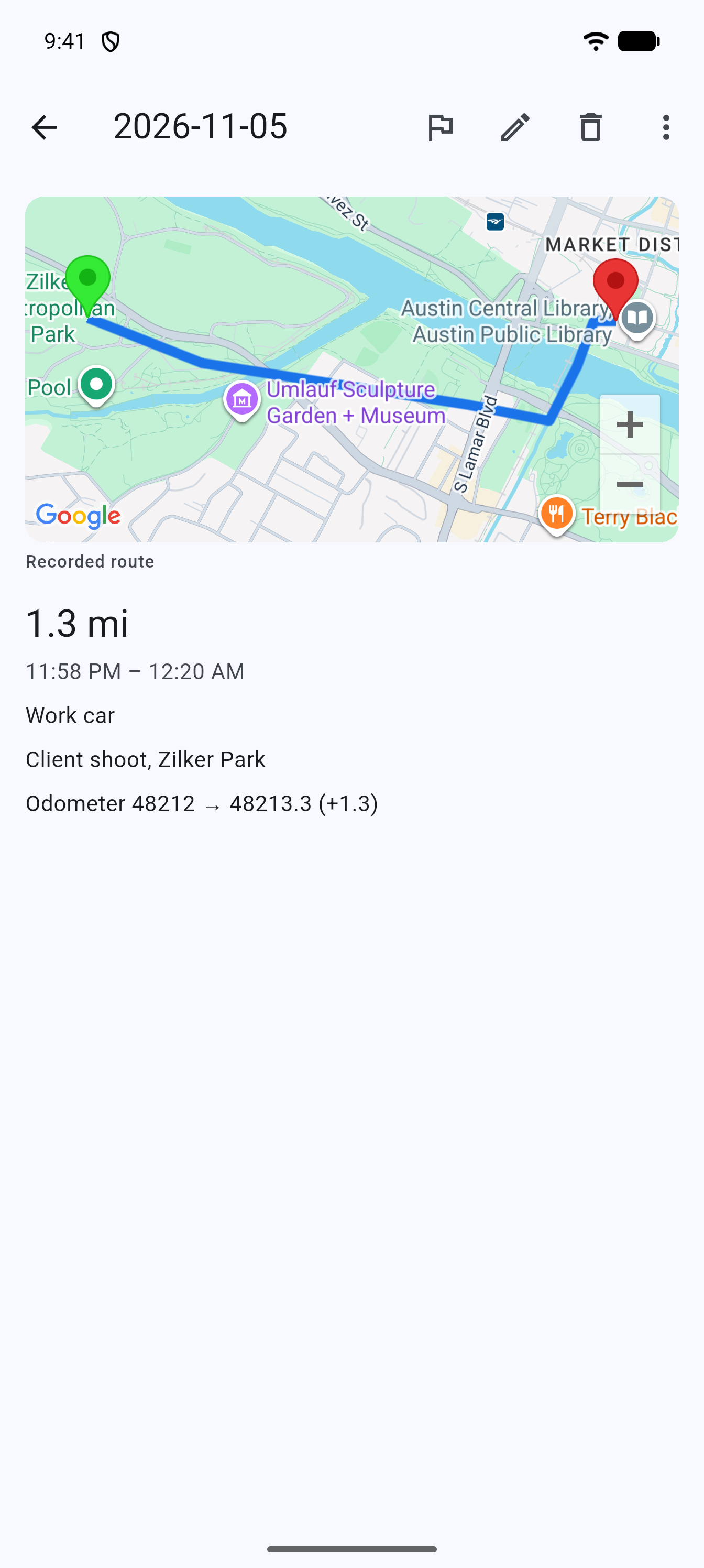
- Every trip with its date, distance, time span, vehicle, purpose, odometer readings and, for detected drives, its route map.
- The trip’s classification: Unclassified, Business or Personal.
- On the free plan, this month’s count of automatically detected trips, for example “3 of 20 free automatic trips this month”.
- The line “Add a mileage rate in Studio to see your running deduction estimate.”
There is no period filter, no total and no export in AceMoney Receipts. To add up a month or a year, or to produce a file for your accountant, use AceMoney Studio.
Where period totals live
In AceMoney Studio open Mileage and the Reports tab.
- Pick a Period (the default is Current Month).
- Read the three cards Business, Personal and Unclassified, each with the number of trips and the distance.
- Once a rate exists on the Rates tab, choose the jurisdiction under Rate for; the Business card then shows Deduction for the period. Without a rate the tab says “Add a rate in the Rates tab to see a deduction total.”
Totals count only classified, unlocked trips: an Unclassified trip is shown separately, and a trip locked by the free monthly allowance is left out until it is unlocked.
Export the tax pack
Also on Studio’s Reports tab:
- Choose the Period and the jurisdiction under Rate for.
- Tap Tax pack (CSV). With the Mileage plan not active the button reads Unlock the tax report instead.
- Save the file or share it, as with any Studio export.
The file has one row per trip with Date, Vehicle, Purpose, Distance and Deduction (or “no matching rate”), and a total at the end. One jurisdiction per export. It contains mileage only, no receipts. See Export and print in AceMoney Studio.
Studio can also post a business trip as an expense into your ledger, at distance times rate. See Mileage in AceMoney Studio.
Get trips from your phone into Studio
With AceMoney Cloud, a connected AceMoney Studio document and the switch Send my drives to AceMoney Studio on (Settings, Mileage tab; it starts on), the trips your phone records arrive in Studio on their own, so there is nothing to re-enter. Trips recorded before you turned it on can be sent with Send earlier drives in the same place. Studio applies its own rates to them: rates and links to expenses are not sent from the phone.
Trips still never appear in the web version or in another phone’s AceMoney Receipts, and there is no export from the phone itself.
Without AceMoney Cloud, or with the switch off, trips stay on the phone. To report on them in Studio:
- In Studio, open Mileage, Trips, and tap Add trip for each trip from the phone’s list, with its date, distance, purpose and vehicle.
- Classify it Business or Personal exactly as on the phone.
See Mileage in AceMoney Studio for what Studio records.
What a tax report needs
Most tax authorities accept a standard mileage deduction only with a log kept at or near the time of each drive. A defensible log has, for every business trip:
- the date: recorded automatically for detected drives;
- the distance: recorded from the drive, or typed for manual trips;
- the purpose: fill in Purpose (optional) with the business reason (“Client visit, Acme”) on the day;
- where you went: the route map on a detected drive’s detail page shows it; for manual trips put the destination in the purpose or the note;
- the vehicle: attribute trips to a vehicle when you use more than one;
- odometer readings: many authorities want a year-start and year-end reading per vehicle. Put the year-start reading in the vehicle’s Starting odometer and scan the dashboard at year end on a trip;
- the year’s total business and personal distance and the standard rate for that year, which Studio’s Reports tab and tax pack provide once you enter the rate.
Commuting between home and a regular workplace is usually personal, not business. Keep the log for as long as your authority requires you to keep tax records.
Common questions
Can I export my trips from AceMoney Receipts?
Not from the phone. There is no export, e-mail or share of the mileage log in the phone app. The tax pack is produced in AceMoney Studio, from the trips recorded there or sent there from your phone (see above).
Do I need the Mileage plan to see totals?
No. Period totals and the deduction figure on Studio’s Reports tab are free. The Mileage plan, or AceMoney Cloud, which includes it, unlocks the Tax pack (CSV) export and lifts the monthly allowance of automatically detected trips.
Why does the deduction estimate never show a number in Receipts?
The estimate needs a mileage rate, and AceMoney Receipts has no rate screen. In this release a rate entered in AceMoney Studio is not carried to the phone, so the line keeps showing “Add a mileage rate in Studio to see your running deduction estimate.” Use Studio’s Reports tab for the figure.
Which rate does the app use?
None is built in. You enter the standard rate your tax authority publishes, per year and jurisdiction, on Studio’s Rates tab. Trips are matched to the rate in force on their date.
Which trips are in the totals?
Trips classified Business or Personal for the chosen period and, for the deduction, only Business trips with a matching rate. Unclassified trips are counted on their own card and locked trips are left out.
Is the free monthly allowance the same as a tax period?
No. The allowance of 20 automatically detected trips resets each calendar month; it has nothing to do with your tax year.
Does the log cover more than one vehicle?
Yes. Attribute each trip to a vehicle; Studio’s tax pack lists the vehicle on every row.
Troubleshooting
- “Add a mileage rate in Studio to see your running deduction estimate.” never goes away. This is expected in the current release; see the question above.
- Studio’s Reports tab says “Nothing to summarize yet — Log a trip to see period totals here.” although the phone has trips. Phone trips reach Studio only with AceMoney Cloud, a connected Studio document and Send my drives to AceMoney Studio on. If one of those is missing, add the trips in Studio by hand; otherwise check that the Studio document is the one shown after “Sends to:” in the phone’s settings.
- Studio shows “Unlock the tax report” instead of “Tax pack (CSV)”. Neither the Mileage plan nor AceMoney Cloud is active in Studio. Sign in to Studio with the account that has it. See Receipts Pro and the Mileage plan.
- Studio says some trips “have no matching rate” and are excluded. Add a rate on the Rates tab whose Effective from date is on or before those trips, for the same jurisdiction and category.
- The phone’s distances and Studio’s totals differ. The phone shows the unit chosen under Units; Studio may be set to the other one. Make sure both use the same unit before comparing.