
AceMoney Receipts
Sharpen a misread receipt with Cloud
When the phone reader could not make out the payee or the amount, Sharpen with Cloud sends the receipt’s photo to Google’s AI for a second, more accurate reading. The free plan includes a few sharpens a day; Receipts Pro uses its monthly allowance.
When the button appears
Sharpen with Cloud shows on a saved receipt whose Payee or Amount ($) was blank or had to be corrected when it was saved. It does not show on a receipt that read correctly, on a receipt typed in with Manual Entry (there is no picture to read), or on receipts created in the web version.
Sharpen a receipt
- On the Home tab, open the receipt.
- Under the picture card, tap Sharpen with Cloud. The button reads Sharpening… while the reading service works.
- Read the result:
- “Receipt updated from cloud OCR”: the payee, amount or date on the page was filled in or corrected. Check the fields and tap Save.
- “Cloud OCR found nothing to improve here”: the reading service agreed with what is there.
- On the free plan a line under the button then shows how many sharpens are left today, for example “2 cloud sharpens remaining today (resets daily)”.
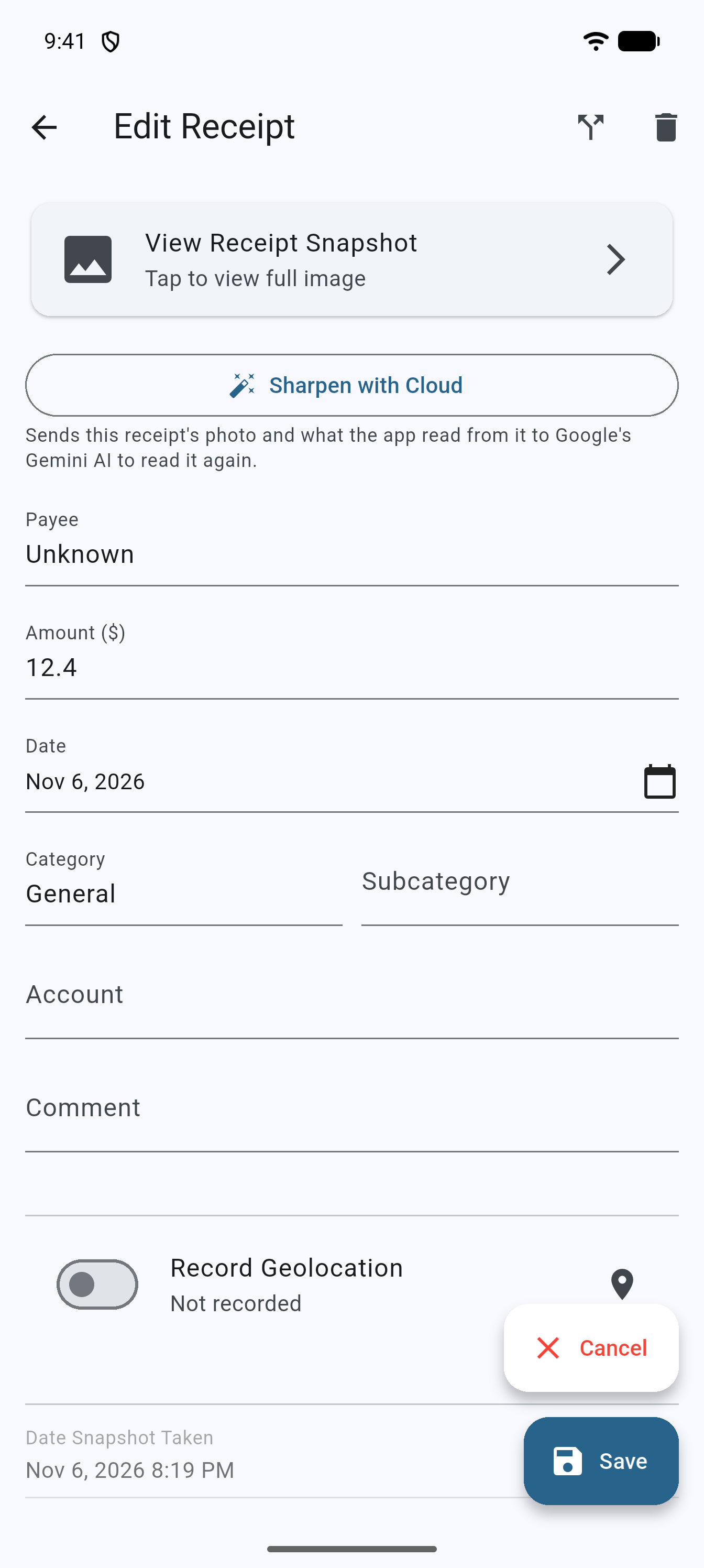
What is sent
The receipt’s photo and what the app already read from it are sent to Google’s AI, which reads the receipt again; the caption under the button says so, and on the free plan it ends with “Free plan: up to 3 times a day.” Nothing else from your account is sent. On the free plan this is the only time a receipt is sent for reading; see Privacy and security.
The free daily allowance
The free plan includes up to 3 sharpens a day. The day resets at midnight UTC (Coordinated Universal Time), so the reset may not fall at your local midnight. After the third: “You’ve reached the free limit of 3 Sharpens a day. Try again later, or upgrade to Pro for more.”
On Receipts Pro
Receipts Pro reads every new receipt with the reading service, so the button appears less often. When it does, a sharpen counts against the monthly allowance of 250 scans (see How receipts are read). Messages you may see: “Daily cloud-sharpen limit reached — try again tomorrow” and “This month’s cloud-scan limit reached — resets next month. Manual entry still works.”
Common questions
Why do I not see the button?
It only appears on a saved receipt that the reader got wrong (blank or corrected payee or amount). Close and reopen the receipt if you just saved it. Receipts without a picture, and receipts made in the web version, never show it.
Does it overwrite what I typed?
It fills in or corrects the payee, amount and date from the picture. Check the fields afterwards, change anything you disagree with, and tap Save.
Does the free plan send my receipts to the reading service automatically?
No. On the free plan nothing is sent unless you tap Sharpen with Cloud.
Can I sharpen the same receipt twice?
Yes. Each tap counts against the allowance.
Is a sharpen faster or better than rescanning?
It is quicker than a rescan and often enough for a faint or crumpled receipt. If the picture itself is unusable (cut off, out of focus), rescan instead: the reading service can only work with the picture it gets.
Troubleshooting
- “Cloud sharpening isn’t available right now”. The service could not be reached. Try again later.
- “Could not sharpen this receipt”. Something went wrong on the way. Check the connection and tap again.
- “Cloud OCR found nothing to improve here”. The reading service read the same values. Type the fields yourself.
- “You’ve reached the free limit of 3 Sharpens a day…” Wait for the daily reset, or upgrade to Receipts Pro.
- “This month’s cloud-scan limit reached — resets next month.” The Pro monthly allowance is used up. Type the fields; the allowance resets next month.