
AceMoney Receipts
Track your drives automatically
The Mileage tab turns your phone into a mileage logbook. With automatic detection on, AceMoney Receipts notices when you drive, records the trip in the background and lists it for you to mark as business or personal. Trips are kept on this phone; with AceMoney Cloud and a connected AceMoney Studio document they also reach Studio (see Where your drives are stored).
Before you begin
- Automatic detection works in the AceMoney Receipts app on iPhone, iPad and Android. The web version cannot record drives; it shows “Automatic mileage tracking is only available on the phone app (Android/iOS), not this platform.”
- You do not need Receipts Pro. The free plan records up to 20 automatically detected trips a calendar month; trips you add by hand or start yourself are always free and unlimited.
- Only one app on a phone can record drives automatically, and AceMoney Studio takes priority. When Studio is on the same phone, Receipts steps back and shows “AceMoney Studio records your drives on this phone.” or, if Studio is installed but not tracking yet, “AceMoney Studio is on this phone. Turn on mileage tracking there to record drives.” Start trip is hidden then; Add trip stays.
What automatic detection does
The phone’s motion sensors tell the app that you have started moving like a vehicle. The app confirms it (“A possible drive was detected — confirming…”), records your route in the background (“Recording your drive now.”) and, when you stop for a while, wraps the trip up (“Wrapping up your trip — it will appear here shortly.”). The trip then appears on the Trips tab with its date, distance, time span and a badge: High confidence, Medium confidence or Low confidence. You mark it business or personal with a swipe and a tap; see Review trips, vehicles and mileage rates.
The status line at the top of the Trips tab says what the app is doing; when everything is on it reads “Automatic detection is on — watching for drives. A new drive can take a few minutes to show up here.” The Mileage icon in the bottom bar turns green with a small dot while detection is armed.
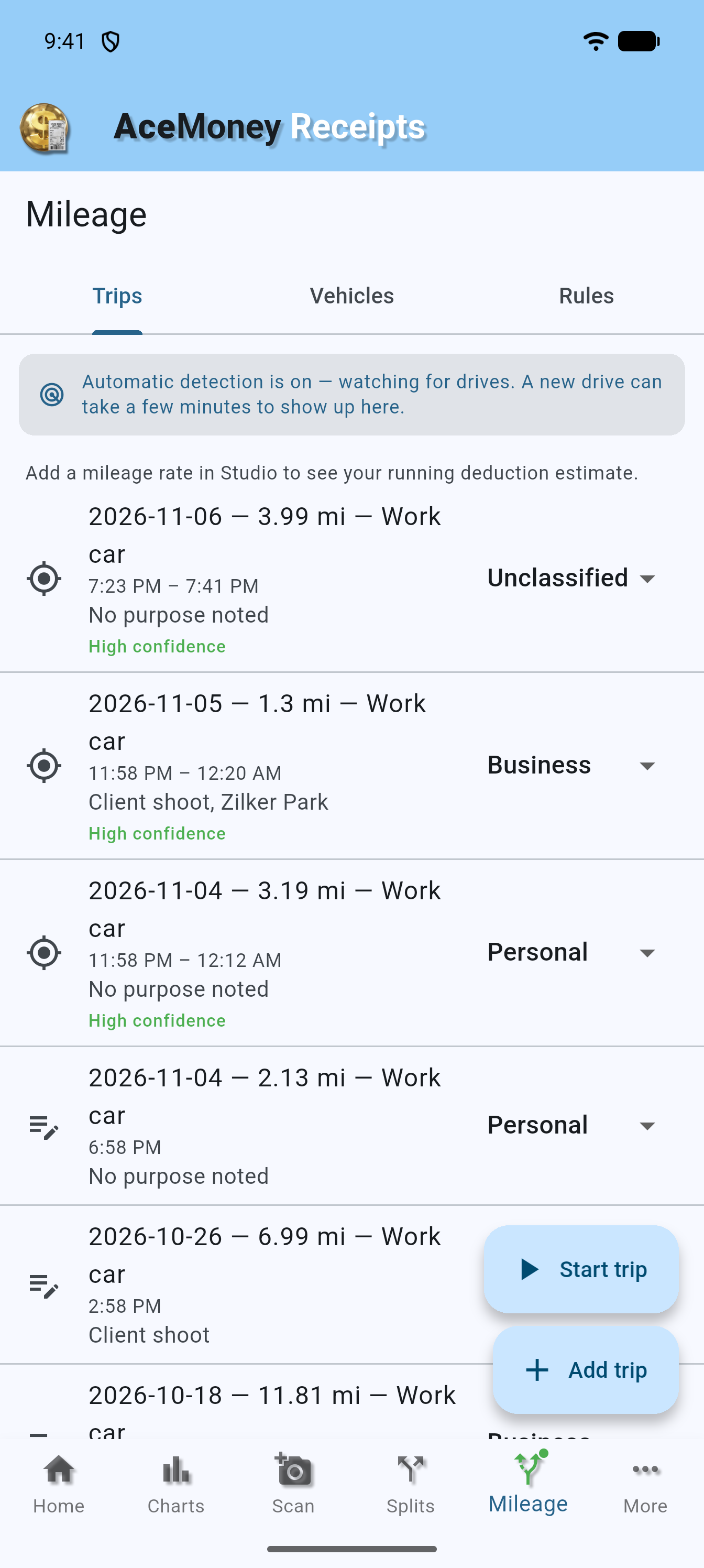
Turn on automatic detection
- Tap More, then Settings, then the Mileage tab.
- Turn on Track mileage in this app. Its subtitle changes to “Trips detected on this device will be tracked here.”
- Under Detection, tap Enable automatic tracking.
- A dialog titled Automatic mileage tracking explains that the app logs your drives automatically for mileage and tax records, that location is used in the background only while you drive, is processed on your device and stored locally, is optionally synced end-to-end-encrypted, is never sent to advertising or AI services, and that you can turn this off anytime. Tap Continue (or Not now). This dialog always comes before the phone’s own location prompt, and it also appears when you turn on Track mileage in this app or tap Start trip for the first time.
- Allow location access while using the app when your phone asks.
- Right after you allow location, the card Get automatic detection appears (it does not wait for a first trip): “Allow location access “Always” so drives are detected without opening the app.” Tap Upgrade and choose the always option in the system prompt.
- When the card Motion & activity access appears (“Improves trip-start detection accuracy.”), tap Allow, or Open Settings if the phone wants the change made in its own settings.
- On Android, open Advanced and tap Enable next to Exempt from battery optimization.
- Check that Auto-detect trips is on: “Trips are detected automatically as you drive.”
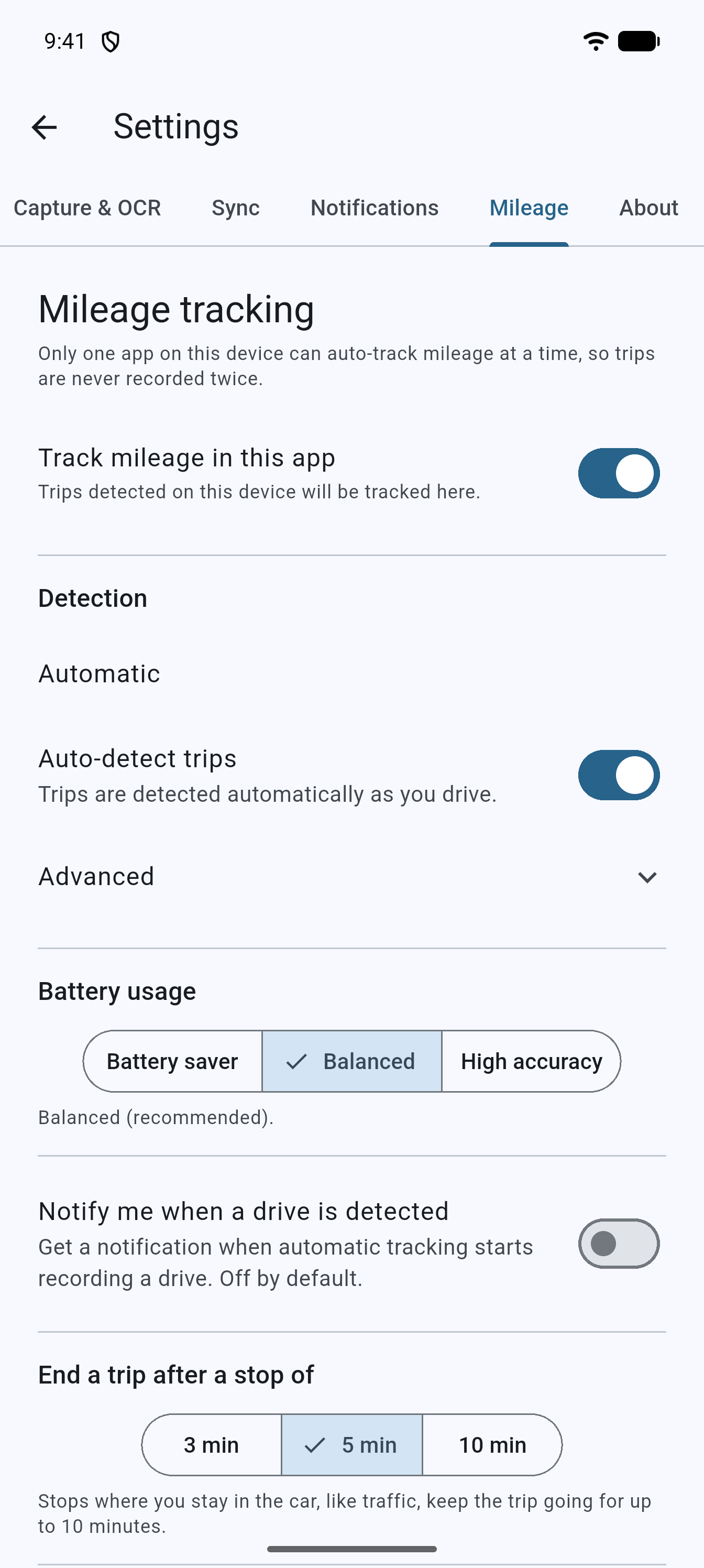
The permissions it asks for, and why
iOS (iPhone and iPad)
- Location while using the app: “AceMoney Receipts uses your location to geotag receipts and to record a drive when you start one from the app.” Needed for Start trip and the first drive.
- Location always: iOS asks you to upgrade from “while using” to “always”, with the same explanation as the Automatic mileage tracking dialog. Without “always”, drives are recorded only when you start them from the app.
- Precise Location: detection needs it. If it is off the app shows Turn on Precise Location; turn it on under Settings, Privacy & Security, Location Services, AceMoney Receipts.
- Motion & Fitness: “AceMoney Receipts uses motion activity to tell driving from walking, so it only logs real drives and saves battery.”
- Notifications: asked only when you turn on Notify me when a drive is detected.
Android
- Location: choose “While using the app” first. For background detection the app then sends you to its permission page to choose “Allow all the time”; keep “Use precise location” on.
- Physical activity: Android’s own prompt; it is the motion permission that tells driving from walking.
- Notifications (Android 13 and later): only for the optional drive-detected notification.
- Battery optimization: Exempt from battery optimization opens a system dialog; allowing it stops Android from pausing the app between drives. Some phone makers add their own battery managers; if drives are missed, also allow background activity for AceMoney Receipts there.
Detection modes
The status row under Detection names the mode you are in, based on what you have allowed: Automatic (drives are detected on their own); Semi-automatic — start drives from the app (location only while using the app; use the row’s Start drive / Stop drive or Start trip); Manual or Manual — odometer & manual entry (no location; Add trip manually).
The Auto-detect trips switch appears once this app owns tracking; turned off it reads “Off — add trips yourself with Add trip or Start trip.” Nothing already recorded is affected by turning it off.
Record a drive on demand
- On the Mileage tab, tap Start trip: “Recording your trip — tap Stop when you arrive.”
- Drive. The button turns red and reads Stop trip.
- Tap Stop trip when you arrive: “Trip saved.”
The first time, the Automatic mileage tracking dialog appears before the phone asks for location. The button also reads Stop trip while an automatically detected drive is being recorded, so you can end that drive by hand; the optional drive-detected notification has an End trip action too. A trip you end by hand is never joined to a later one.
Trips you start yourself never count against the free monthly allowance.
Tune when trips start and end
On the Mileage settings tab:
- Ignore short trips: “Trips shorter than this are left out of your log. Trips already saved are kept.” Choose Off or a distance (0.25, 0.5, 1 or 2 miles; 0.5, 1, 2 or 5 km). It is off by default, and the app always leaves out anything under 0.1 mile.
- Use Home and Work to start trips sooner: “Lets the phone notice when you leave Home or Work, so a trip can start sooner. Only your Home and Work places are used.” Off by default; the places are the saved places described in Review trips, vehicles and mileage rates.
- End a trip after a stop of: 3, 5 or 10 minutes (5 by default). “Stops where you stay in the car, like traffic, keep the trip going for up to 10 minutes.” A long stop inside a trip is a place where you can later split it in two.
Start trips when your car connects (Android only)
On Android 13 or later, the Mileage settings tab has Start trips when my car connects. It is not shown on iPhone, iPad or older Android versions.
- Tap Add my car (the section says “No car linked yet.” until you do). The Link your car dialog explains the idea; tap Continue, then choose your car under Choose your car. It lists Bluetooth devices your phone has already paired.
- Optionally open the Vehicle menu on the car’s row and pick a vehicle, so its trips are attributed to it; it starts at Default vehicle.
From then on a trip starts when the car’s Bluetooth connects, even if the app is closed, and ends when it disconnects. Tap the remove button (Remove this car) to unlink it.
Choose a battery mode
Under Battery usage on the Mileage settings tab, pick Battery saver (“Battery saver — only very confident trips auto-record.”), Balanced (“Balanced (recommended).”) or High accuracy (“High accuracy — faster detection, more battery.”). Between drives the app relies on low-power motion sensing and uses full location only while a drive is being recorded, so extra battery use shows mainly on days you drive a lot. If Background App Refresh is off for the app on iPhone (Low Power Mode turns it off too), or Android restricts the app’s background activity, the status row adds “Reduced detection — battery saver is limiting background checks” and short drives may be missed.
Get a notification when a drive starts
Turn on Notify me when a drive is detected (“Get a notification when automatic tracking starts recording a drive. Off by default.”). The phone asks for notification permission the first time.
The free monthly allowance and the Mileage plan
- The free plan lets you classify up to 20 automatically detected trips per calendar month. The Trips tab shows the count, for example “3 of 20 free automatic trips this month”, with Get Mileage beside it.
- Trips over the allowance are still recorded and listed but marked Locked — unlock to classify. A locked trip’s classification is greyed out; swiping the row opens the Get Mileage sheet.
- Trips you add by hand and trips you start with Start trip are never counted or locked.
- The Mileage plan is a yearly purchase through the App Store or Google Play. It removes the allowance, unlocks every locked trip on this phone retroactively and removes ads. Trips you classified while the plan was active stay classified if it lapses. See Receipts Pro and the Mileage plan and the pricing page.
Where your drives are stored
Trips, routes and vehicles are recorded and stored on this phone. They do not appear in the web version or in another phone’s AceMoney Receipts, and a new phone starts with an empty log. Deleting the app, or Delete Account, deletes the trips from this phone.
Send your drives to AceMoney Studio
If you use AceMoney Cloud with a connected AceMoney Studio document, the drives you record also reach Studio, so you can report on them there. It happens only while the switch Send my drives to AceMoney Studio on the Mileage settings tab is on (it starts on). Its help text says: “With AceMoney Cloud, the drives you record are also kept in our cloud, end-to-end encrypted: we can’t see where you drove, how far, or why. We can see how many drives you record, a rough size for each, and when each is uploaded, changed or deleted.”
- Mileage rates and expense links are not sent; Studio applies its own rates.
- Send earlier drives sends the drives recorded before you turned this on. It appears only while there are such drives and you are signed in; confirm with Send, and the app says “Earlier drives will be sent.”
- Under Settings, the Sync tab shows “Sends to:” with the Studio document and a Change button. Receipts you photograph go there too while Save receipts to AceMoney Studio is on under Capture & OCR.
What leaves the phone and what does not is on Privacy and security in AceMoney Receipts.
Common questions
Does automatic detection need Receipts Pro?
No. Every plan, including the free one, can record drives automatically. The free plan lets you classify 20 automatically detected trips a month; the Mileage plan removes that limit. Receipts Pro is a separate subscription for receipt reading and does not change the mileage allowance.
Why did my drive take so long to appear?
Detection waits until it is sure a drive has started and ended, so a trip normally shows up a few minutes after you park. Pull down on the Trips list to refresh. If the status line reads “Not armed — re-enabling automatic detection…”, the system had closed the app; keep it open a moment and detection re-arms.
Will it record trips when I am a passenger, or on a bus?
The app cannot tell who is driving, so a taxi or bus ride can be recorded too. Mark such trips Personal, or delete them from the trip’s detail page.
Are my trips backed up or synced to my other devices?
Not to other phones. Trips do not appear in the web version or in another phone’s AceMoney Receipts. With AceMoney Cloud, a connected Studio document and Send my drives to AceMoney Studio on, your drives are sent, end-to-end encrypted, to AceMoney Studio. Without those, they stay on the phone that recorded them.
What does AceMoney Receipts do when AceMoney Studio is on the same phone?
Studio records the drives. Receipts steps back, says so, and hides Start trip; you can still add trips by hand with Add trip.
Troubleshooting
- Drives are not detected, or the status line reads “Automatic detection is off. Turn on “Track mileage in this app” in Settings, or tap Start trip to record one now.“ Under Settings > Mileage, Track mileage in this app and Auto-detect trips must be on and location allowed always; the card under them names the permission still missing. A drive can take a few minutes to appear.
- The Detection row reads “Semi-automatic — start drives from the app”. Location is allowed only while using the app. Tap Upgrade on the Get automatic detection card, or set the location permission to always in the phone’s settings.
- The row shows “Turn on Precise Location”. Turn on precise location for AceMoney Receipts in the phone’s location settings.
- “Reduced detection — battery saver is limiting background checks”. Turn on Background App Refresh for AceMoney Receipts (iPhone: Settings > General > Background App Refresh) and turn off Low Power Mode; on Android tap Enable under Exempt from battery optimization.
- “AceMoney Studio records your drives on this phone.” or “AceMoney Studio is on this phone. Turn on mileage tracking there to record drives.” AceMoney Studio is the app recording on this phone, so Receipts does not. Turn on mileage tracking in Studio, or add trips by hand with Add trip.
- I do not see “Start trips when my car connects”. It exists only on Android 13 or later.
- A short trip is missing. Ignore short trips may be set above its length; trips under 0.1 mile are always left out.
- “Location permission is needed to record a drive.” when tapping Start trip. Allow location access for AceMoney Receipts, at least while using the app.
- “Mileage tracking isn’t ready yet. Try again in a moment.” or “Could not start the drive. Please try again.” Check that location is on for the phone, wait a few seconds and try again.
- Drives are missed on Android. Check all three: location “Allow all the time” with precise location, the physical-activity permission, and battery optimization exempted. Some phones also need background activity allowed in their own battery manager.
- A trip shows “Locked — unlock to classify”. You have passed this month’s 20 free automatic trips; its classification is greyed out and swiping it opens the Get Mileage sheet. Wait for the next calendar month or get the Mileage plan; manual trips stay free.