
AceMoney Receipts
Share a split with a link
Sharing sends a split to the people in it so each can see their own share, record what they paid and keep the balance on their side, without installing anything or creating an account. You send each person their own personal invite; there is no single link for everyone.
Before you begin
- Be signed in to AceMoney Receipts (a guest sign-in is enough) and connected to the internet. Creating and using splits needs neither; sharing does.
- Save the split first. Sharing publishes a copy of it under your account; the people you share with see the description, the expenses and their own share.
- Add each person to the split by name first: an invite is made for one named person.
Send a split
- On the Splits tab, tap the share icon on the split’s row (Share this split).
- The first time you share, the app asks What name should people see? (“The people you share this split with will see this name. Your e-mail address is never shown.”). Type it under Your name and tap Continue. An e-mail address is refused: “Enter a name, not an e-mail address.”
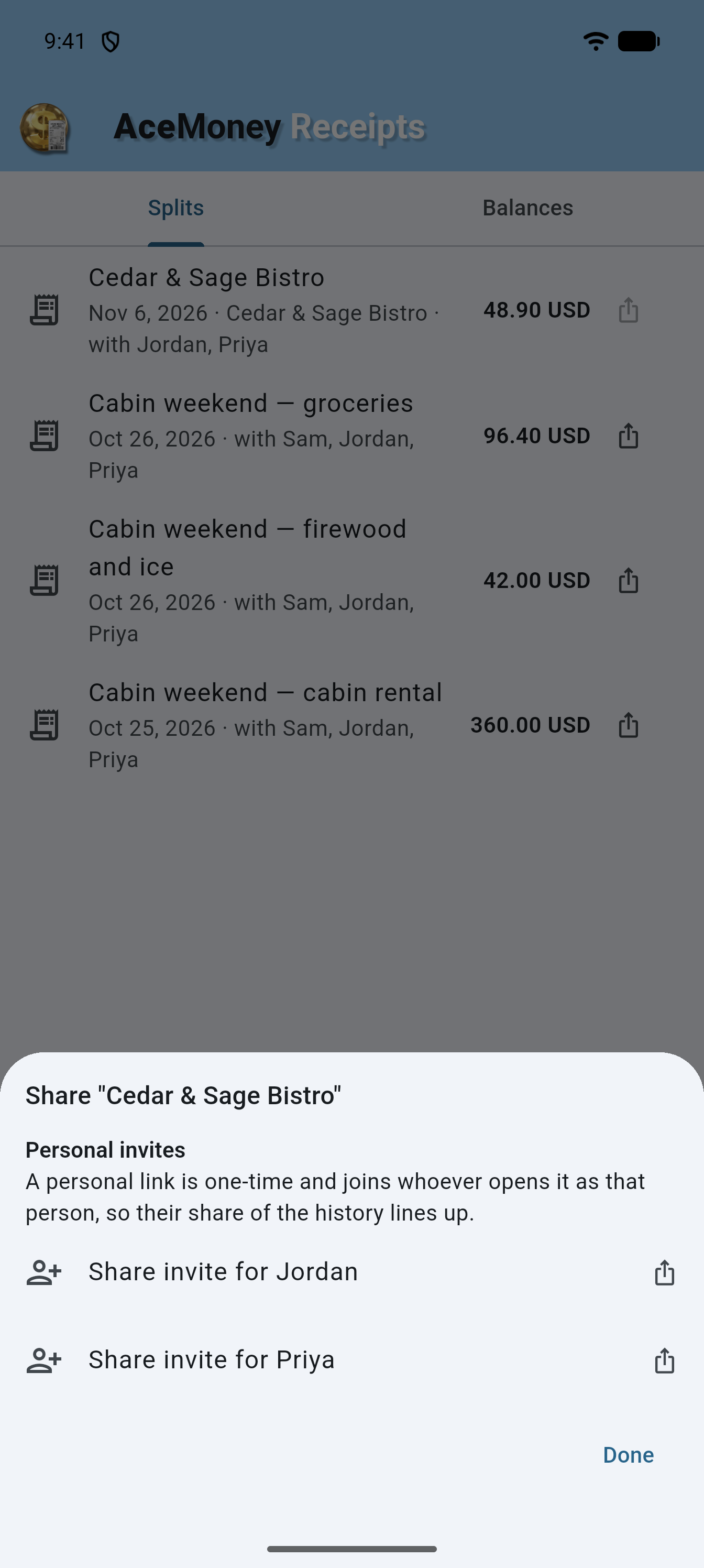
- The sheet Share “Dinner” opens (with your split’s name). If nobody else is in the split it says “Add a person to this split to share it with them.”
- Under Personal invites you see one row per person, Share invite for Alice. “A personal link is one-time and joins whoever opens it as that person, so their share of the history lines up.” Tap a row; the phone’s share sheet opens so you can send it by message, e-mail or any app. The app confirms “Invite for Alice shared”.
- Repeat for each person, then tap Done.
Send each person only their own invite. People who have already joined a shared split receive later changes directly; the sheet then says, for example, “Sent to Alice, Bob”.
What the other person sees
The invite opens a page in any browser, on a phone as well as a computer:
- the heading “Alice, join Dinner” and “See your share — no account needed.”;
- the total and each expense with who paid, for example “Bob paid”;
- the people in the split as chips; they are not tappable, and yours reads “Alice (you)”;
- the button That’s me — see my share.
Claim your share
- Open the invite and tap That’s me — see my share.
- The page now reads “You’re in this split. Save it to keep your balances on all your devices — free.” and shows your line, for example “You owe Bob” with the amount.
- Optional: tap Save to a free account (on a computer) or Save it in the app (in a phone browser) to keep the split in an AceMoney Receipts account. If you already have one, tap Already have an account? Sign in. On a phone, Open in the app opens the split in AceMoney Receipts.
- If the app is not installed, tap Get AceMoney Receipts. The page says: “After installing, come back to this page and tap Open in the app — or open the app and paste your invite code in Splits → Redeem invite.” Copy invite code copies the code (“Invite code copied.”).
A personal invite can be claimed once.
Record a payment from the link
After joining, the page offers:
- I paid Bob — … with the amount you owe, to record the whole payment in one tap;
- I paid someone…, which opens Record a payment with I paid (who), Amount and Record. The page then shows “You recorded: paid Bob …”.
The payment itself happens wherever you two usually pay each other; the page only records it.
Redeem an invite code in the app
If someone sent you an invite code instead of opening the link:
- Open the Splits tab and tap Redeem invite (the key icon above the tabs).
- In Redeem an invite, paste the code (it starts with “amsplit_”) into the field and tap Redeem.
- The app switches to Splits and the split appears under Shared with you, expanded, with a message saying the split “was added to your account”. If you were on another page it stays put and the message offers Open Splits. A split that is already on your account says so instead.
Splits shared with you
Splits you joined from someone else’s invite appear on your Splits tab under Shared with you: one card per split with its name, your position (“You’re owed”, “You owe” or “Settled up · 3 people”), and the expenses when you expand it. While you owe someone, the card has an I paid button. It opens Record a payment: choose who under I paid, check the Amount (filled in with what you owe), pick a Currency if you owe in more than one, and tap Record. The app confirms “Recorded: you paid Bob” with the amount and currency. The card is read-only otherwise; the owner edits the split and your view follows.
Remind someone to pay
There are no automatic reminders. To nudge someone, share the split again with Share invite for Alice. Once she has joined, recording a payment on either side updates the balance for both.
Common questions
Does the other person need the app or an account?
No. The invite opens in any browser, they tap That’s me — see my share, and they see and settle their share there. An account is optional (Save to a free account).
Is there one link I can send to the whole group?
No. Each person gets their own personal invite from the share sheet. An invite is one-time and joins whoever opens it as that person, so it should go only to them.
Why does the app ask what name people should see?
So the people you share with see a name rather than your e-mail address. It is asked the first time you share, and your e-mail address is never shown.
Can I share a split without signing in?
No. Sharing needs an AceMoney Receipts sign-in (guest is fine) and a connection, because the shared copy is kept under your account for the others to open.
What do the others see of my data?
Only that split: its description, its payee, expenses, who paid, the people’s names and amounts. They do not see your receipts or other splits.
Can the other person change the split?
No. They can join, see their share and record a payment. Only you edit the split; their view updates.
How long does an invite work?
Personal invites are one-time and can expire. Until an invite has been used or has expired, anyone who opens it sees the split. Once it has been used, only the person who used it can see it, in the browser or on the account that joined; anyone else who opens the link is told it has already been used. Once it has expired, no one else can see the split; anyone who opens the link is told it has expired. Share a new invite from the split when that happens.
Troubleshooting
- “You’re offline — try again when connected.” Sharing needs the internet; reconnect and tap the share icon again.
- “Sign in to share a split.” or “Sign in to redeem an invite.” Sign in (or Continue as Guest) under More, Settings, Account, then try again.
- “The request timed out — please try again.” or “Could not share this split. Please try again.” A slow connection; try again in a moment.
- “Sharing isn’t available right now. Please try again later.” The sharing service is temporarily unavailable. Your split is safe on your phone; try later.
- “You’ve shared a lot recently — try again later.” Personal invites are limited; wait a while and tap the person’s row again.
- “Could not create a share link. Please try again.” or “Could not create that invite.” The invite could not be made this time; tap the row again.
- “You’re not a member of this split.” Only a person in the split can send an invite for it.
- “Enter a name, not an e-mail address.” Type the name you want people to see, not your e-mail.
- “That doesn’t look like a split invite code.” The code must start with “amsplit_”; paste the whole code from the message.
- “This invite has expired. Ask the person who shared it for a new one.” or “This invite has already been used. Ask the person who shared it for a new one.” The invite page shows this instead of the split when you open an invite that has expired, or that someone else has already used. Ask the person who shared it for a new invite.
- “This split invite has expired or was already used.” or “This invite has expired or was already claimed.” Ask the owner for a fresh invite.
- “This split was already claimed by another account.” The personal invite was used by someone else; ask the owner for a new personal invite.
- “This split link is invalid or was removed.” The owner deleted the split, or the link was cut short when pasted.
- “Only people in this split can record a payment.” Open your invite and tap That’s me — see my share to join before recording a payment.
- “Could not reach the server — check your connection and try again.” Reconnect and redeem the code again.