
AceMoney Receipts
Split a bill with friends
The Splits tab divides a bill between you and the people you name, keeps the math exact to the cent and tracks who still owes whom. It is free on every plan, the people you add need no app or account, and everything except sharing a split works without a network connection.
Create a split from a receipt
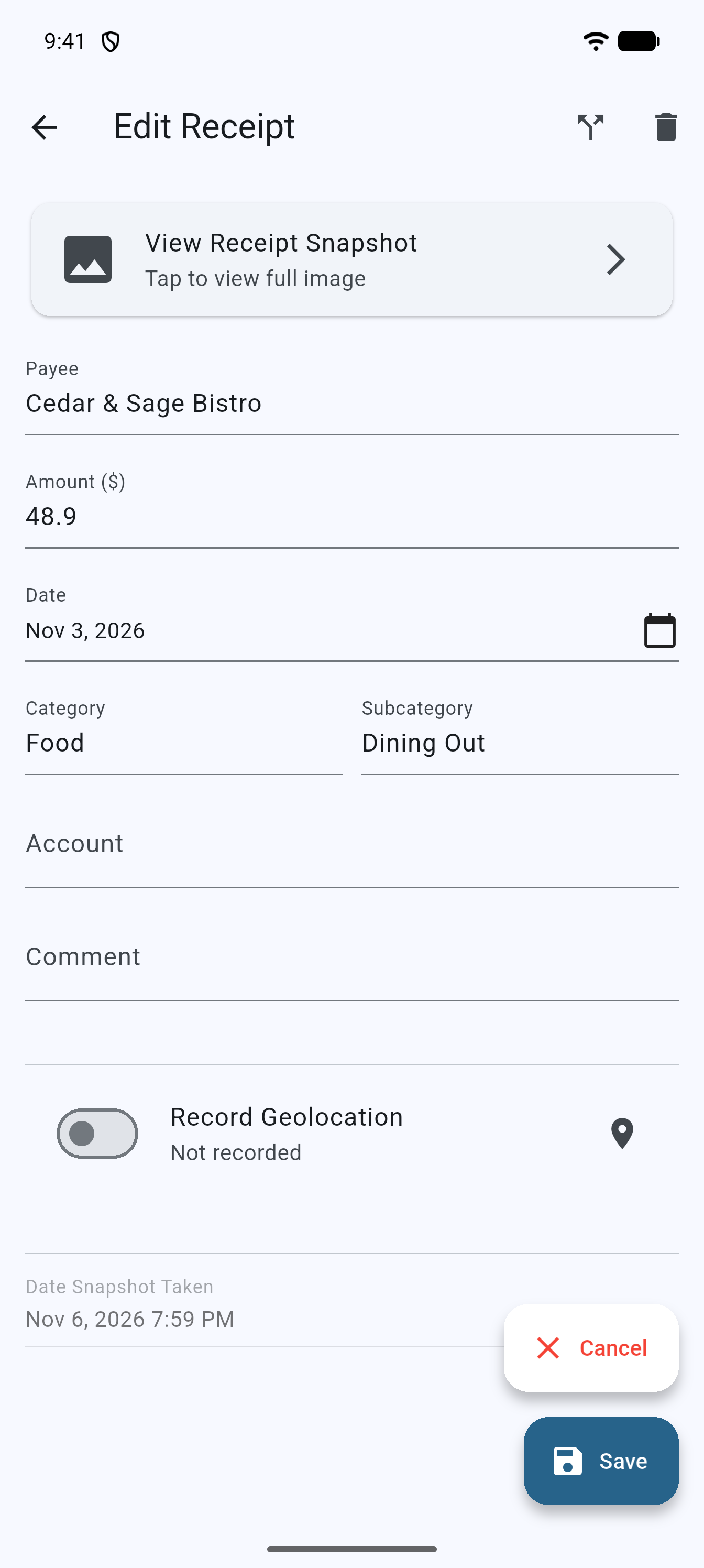
- Open the receipt (tap it on the Home tab).
- Tap the split icon at the top right (Split this receipt).
- The Split a bill sheet opens with What for and Payee set to the receipt’s payee and the total set to the receipt’s amount. The total’s label shows the split’s currency, for example Total (USD).
- Add the people, choose how to divide it (below) and tap Save split. You can also set the Currency, the Date and an optional Category (see “Currency, date and category” below).
Tapping the split icon again on the same saved receipt reopens the same split rather than making a second one.
Create a split from the Splits tab
- Tap Splits in the bottom bar.
- Tap New split.
- Type What for (“Dinner, groceries, rent…”) and the total (labelled for example Total (USD)), including any tax and tip.
- Add the people, choose the method and tap Save split.
Currency, date and category
The split sheet also has a Currency menu, a Date and an optional Category. The labels of the total and of every amount follow the currency you pick, for example Total (EUR). Pick the currency the bill was in; the Category is optional and can stay empty.
Add the people who share it
Under Who shares it, tap a name to include it; you are always You. To add someone new, type their name in Add a person by name… and tap the add button (Add person). Names are all the app needs: no phone number, e-mail or account. Everyone you have added before is offered again on your next split. If you have receipts with payees, the From payees button (the shop icon beside Add person) opens a list you can search (Search payees); choosing a name adds that person, or selects the one you already have by that name. No payee matches appears when the search finds nothing.
The People icon next to Add person opens a list of everyone you have added, each with Hide Alice. Hiding someone, after you confirm Hide Alice?, means they are no longer offered when you split; what they owe or are owed stays in the balances until it is settled, and they still appear in a split they are already in. Under Hidden, Show Alice brings them back; tap Done to close. Press and hold the name of a person who is on AceMoney too and a hint reads “In AceMoney — your shares reach them directly”.
Choose how to divide the bill
Pick a method with the segmented control:
- Equal: the total is shared equally between the people you selected.
- Shares: each person gets a number of shares; use the minus and plus buttons next to a name (two shares for a couple, one for a single guest).
- %: type each person’s percentage in the “Alice %” fields; they should add up to 100.
- Exact: type each person’s amount in the “Alice amount” fields; they must add up to the total minus tax and tip.
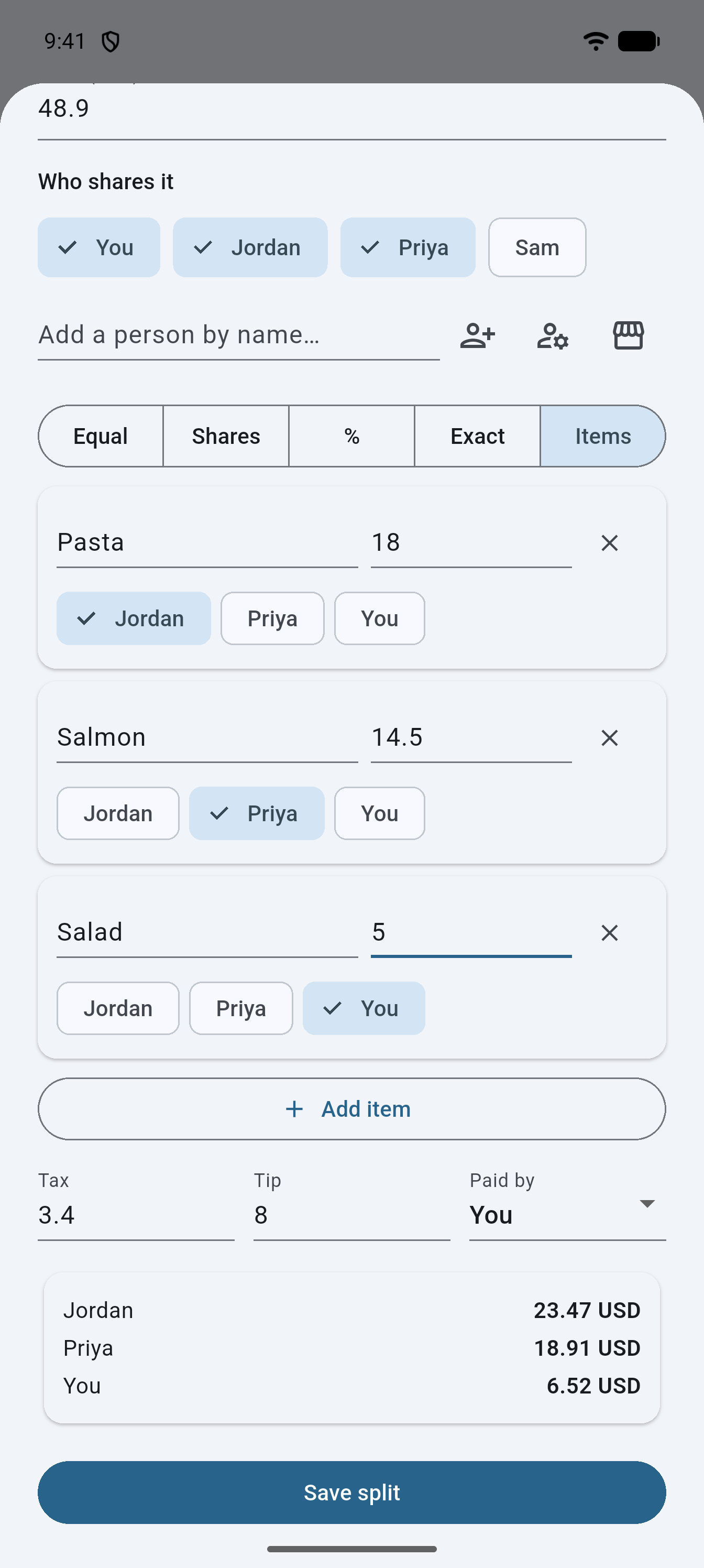
- Items: enter what each person had (next section).
Split by items
- Choose Items and tap Add item.
- Type the item’s name (Item) and its price.
- Tap the names of the people who had it. With nobody selected the item shows “everyone” and is shared by all.
- Repeat for each line of the bill. Remove a line with the ✕ (Remove item).
The items must add up to the Total minus Tax and Tip; if they do not, the preview shows “Invalid split” until you fix a price or the total.
Add tax and tip
Type the amounts in Tax and Tip. Both are part of the Total you entered, and each is spread over the people in proportion to their share of the food or items, so someone who ordered more also carries more of the tax and tip. Every amount is rounded to the cent and the shares always add up to the total exactly; a leftover cent goes to the person with the largest fraction.
Say who paid
Paid by is you unless you change it. Choose the person who settled the bill; the app then works out what everyone else owes them. One payer per split.
Check the preview and save
The card above Save split shows each person’s share. If something is missing you see “Enter the total amount”, “Pick at least one person” or “Invalid split”. Tap Save split when the numbers look right.
Edit or delete a split
- On the Splits tab, tap a split to reopen it as Edit split, change anything and tap Save split.
- Press and hold a split to delete it. The dialog Delete this split? (“Balances will recompute without it.”) offers Cancel and Delete.
See who owes whom
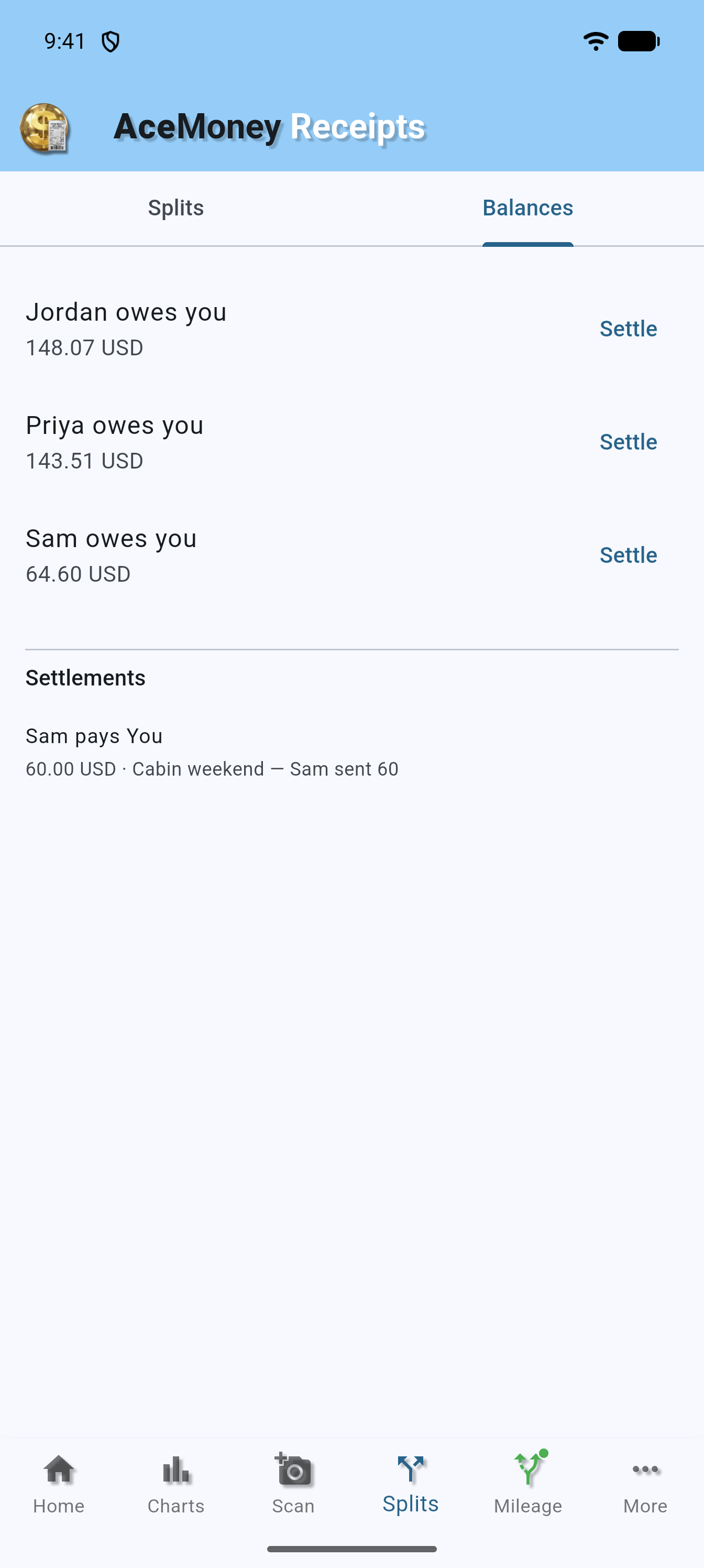
Open the Balances tab on the Splits page. It adds up every split you have saved and shows one line per pair of people who still owe each other, such as “Alice owes you”, “You owe Bob” or “Alice owes Bob”, each with the amount and a Settle button. When nothing is owed it reads All settled up 🎉. Below the lines, Settlements lists every payment you recorded, newest first, with who paid whom, the amount and the date (No settlements recorded yet until you record one).
Record a payment
- On Balances, tap Settle on the line that was paid.
- The sheet, titled for example “Alice pays You”, says “Record what changed hands — the payment itself happens in whatever app you two already use.”
- Type the amount (labelled for example Amount (USD)), the full amount or a part of it, and tap Record payment.
AceMoney Receipts never moves money. It only records that a payment happened, so the balance goes down and the payment is added to Settlements. A recorded payment shows This covers with the expenses it paid off, and More than was owed for any part beyond them.
If a split was shared with you or by you (see Share a split with a link), the Balances tab can also show the payments the other person recorded, as “Recorded by Dee”, and a Records that differ list when two people recorded different amounts for the same payment. The splits other people shared with you add their own amounts under Shared with you.
What works without a network
Everything on this page except sharing: creating, editing and deleting splits, the balances and recording payments. Your own splits are stored on this device; they do not move to another phone, and the web version’s own Splits tab does not show the splits made on your phone. Sharing a split, claiming one that was shared with you and the I paid button need the internet.
Common questions
Do my friends need AceMoney Receipts or an account?
No. You add them by name. Tell them their share from the preview or the Balances tab; they can pay you however you usually pay each other.
Can I split in a currency other than US dollars?
Yes. Choose it under Currency on the split sheet; the Total and Amount labels then show that currency.
Can two people pay parts of the same bill?
A split has one payer. Make two splits, one per payer, with the amount each paid and the same people.
Can I split one receipt several ways?
Each saved receipt is linked to one split; tapping Split this receipt again reopens it. For a different division, create a split from the Splits tab instead.
How are tax and tip divided?
In proportion to each person’s share of the rest of the bill. With Equal that means equally; with Items someone whose items cost more carries more of the tax and tip.
Does the app round in my favour?
It rounds every share to the cent so the shares add up to the total exactly; a leftover cent goes to the person whose share had the largest fraction, whoever that is.
Do splits sync to AceMoney Classic or AceMoney Studio?
Your own splits stay on this device, and pairing with AceMoney Classic syncs receipts only. Splits other people share with you come back as Shared with you cards on the Splits tab and as lines on Balances.
Are splits deleted when I delete my account?
Deleting your account removes your receipts and account data and erases the splits on this phone.
Troubleshooting
- “Enter the total amount”. The total (Total (USD) or the currency you picked) is empty or zero.
- “Pick at least one person”. Tap at least one name under Who shares it (you count).
- “Invalid split” with Items. The item prices do not add up to the total minus tax and tip. Check each price, or adjust the total.
- “Invalid split” with % or Exact. Percentages must add up to 100; exact amounts must add up to the total minus tax and tip.
- A name I added is missing. Names are per device. On another phone or the web version, add the person again.
- I tapped the share icon on a split and saw “Sharing isn’t available right now. Please try again later.” The sharing service is temporarily unavailable. The split stays on your phone; try again later. See Share a split with a link.
- “Enter a valid amount” when recording a payment. Type a positive number with a decimal point.
- A balance looks wrong. Open each split that involves that person and check Paid by and the amounts; balances are the sum of every split and every recorded payment.