
AceMoney Studio
Split a bill with friends in Studio
The Splits page divides a bill between people, keeps the math exact to the cent, and tracks who owes whom until it is settled. It is free, needs no account and no internet, and never moves money: you record what changed hands, and the payment itself happens wherever you two already pay each other.
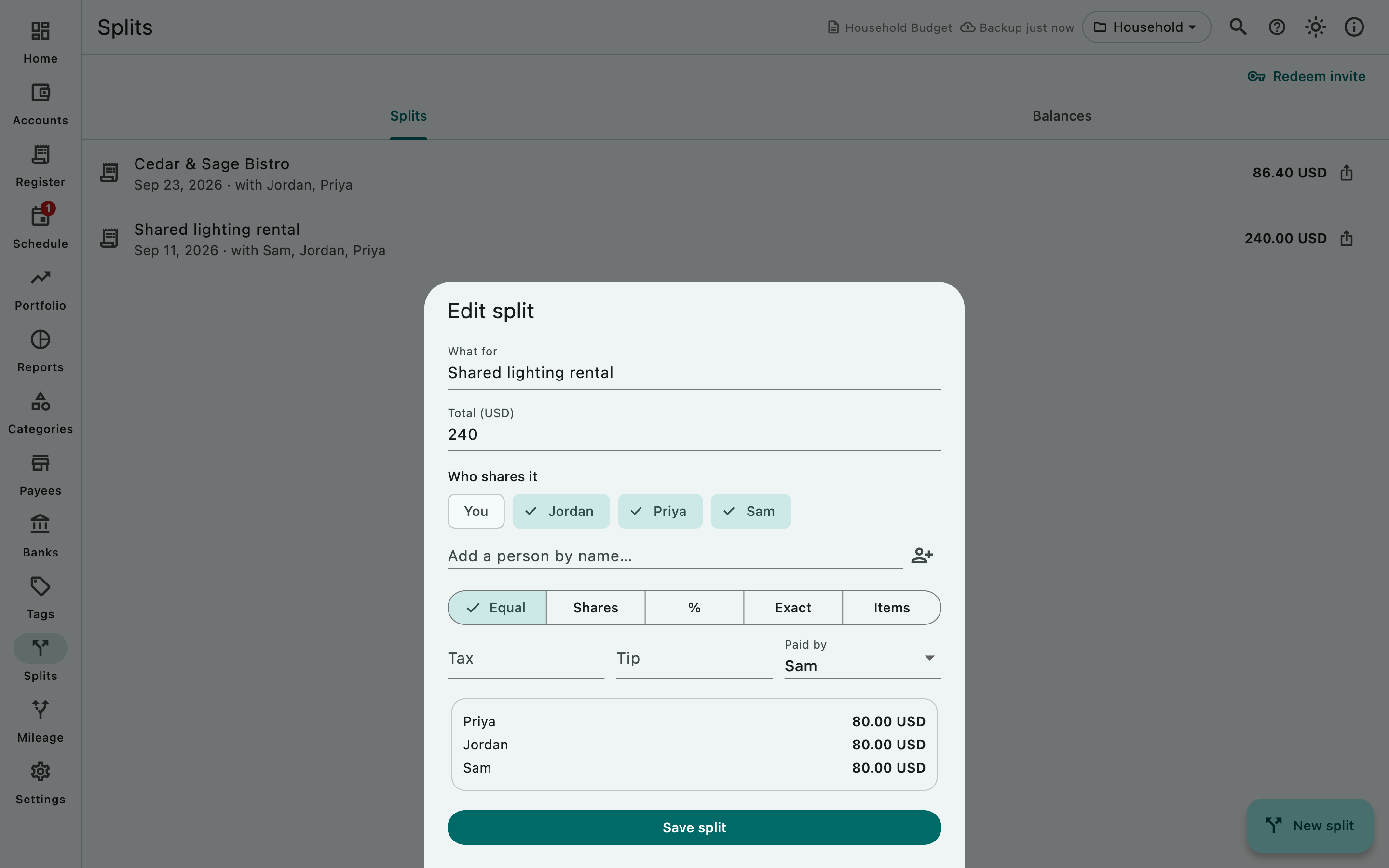
Create a split
- Open Splits in the navigation rail and choose New split.
- In What for, name the expense (“Dinner”, “Groceries”, “Rent”). Under it, Payee says who was paid: the shop or restaurant, as a plain name (the field’s hint reads Shop, restaurant…). Category (optional) says what kind of expense it was: type a name, or pick one of your categories from the list button in the field.
- Enter the Total. The field shows the currency in its label.
- Under Who shares it, tap the people who take part. You are already listed as You. To add someone, type a name into Add a person by name… and choose Add person; the name is remembered for the next split. If your document already has payees, the From payees button (the shop icon beside Add person) opens a list you can search (Search payees); choose a name and Studio adds that person to the split, or selects the one you already have by that name. The list says No payee matches when the search finds nothing.
- Pick how to divide it (see below), add Tax and Tip if they are not in the total, and pick who paid in Paid by.
- Check the preview under the fields, which shows each person’s share, then choose Save split.
From version 1.2, the sheet also has:
- Date, the day of the expense (today for a new split), and Currency, which starts on your document’s base currency.
- A list button in Payee that offers the payees already in your document; you can still type any name.
- People (beside Add person), which lists everyone you have added. Hide someone you no longer split with: they are no longer offered, but what they owe or are owed stays in the balances until it is settled. Hidden people are listed under Hidden, where you can show them again.
- Also record in my accounts, when you paid: it Adds one withdrawal of the full amount to the account you choose. Pick the Account. It is off unless you turn it on.
Split a transaction from the register
- Open Register, select the transaction and choose Split bill in the toolbar (tooltip Split with friends — free, no account needed).
- The Split a bill sheet opens with the amount and currency filled in, What for set to the payee (or to the comment when there is no payee), and Payee and Category filled with the transaction’s own. From version 1.2, Date is the transaction’s date.
- Add the people, pick the method and choose Save split. A message confirms Split saved — balances live on the Splits page.
The transaction in your register is unchanged; the split records who owes you for it.
Ways to divide a bill
- Equal: the total is shared evenly between everyone selected.
- Shares: give each person a weight, for example 2 for a couple and 1 for a single guest.
- %: enter each person’s percentage.
- Exact: type each person’s amount.
- Items: add each line of the bill with Add item, its price, and who it belongs to (or everyone). Tax and tip are spread in proportion to what each person ordered.
Rounding is handled so the shares always add up to the total. If the numbers cannot work, the sheet says Invalid split and tells you what is missing, such as the total or at least one person.
See who owes whom
Open the Balances tab on the Splits page. Each line reads like Alice owes you or You owe Bob with the amount, per currency. When nothing is outstanding it says All settled up 🎉. Under the balances, Settlements lists every payment you recorded with Settle, newest first: who paid whom (for example Alice pays You), the amount, a note if there is one, Recorded in your accounts when you also recorded it there, and the date you recorded it. Payments recorded before Studio kept the date are listed last, without one. The list reads No settlements recorded yet until you record a payment.
From version 1.2, tap a settlement to see which splits it paid back, oldest first.
Settle up
- On Balances, choose Settle next to the line.
- Enter the Amount that was paid, in full or in part.
- To put the payment in your own books too, turn on Also record in my accounts (Adds one entry to the account you choose, in the category of what this pays back.) and choose the Account. It is offered when you are one of the two people and you have an open account in the split’s currency.
- Choose Record payment.
The balance drops by that amount and the payment appears in Settlements. Studio only records the payment; send or receive the money in whatever app you normally use.
From version 1.2, This covers under the amount lists the splits the payment pays back, oldest first, and a line for anything paid beyond what was owed.
Edit or delete a split
- Tap a split on the Splits tab to open it in Edit split, change anything and choose Save split. From version 1.2, if the split was recorded in your accounts and you changed its amount, date or payee, Studio asks Update the entry in your accounts?: choose Update it or Leave it.
- To delete, press and hold the split (on a computer, hold the mouse button down on it) and confirm Delete this split?. Balances recompute without it. From version 1.2, when the split was recorded in your accounts, the dialog also offers Also delete its entry in your accounts; it is off unless you tick it.
What needs the internet
Nothing. Creating, editing and deleting splits, the balances and recording a payment all work offline, and everything stays in your document on this device.
Sharing a split by link, so the other people can see their share on their own phone, is not available yet. On a computer, the share icon on a split and the Redeem invite button ask you to sign in; on a phone or tablet they are not shown. See Troubleshooting.
Splits in Studio and in AceMoney Receipts
Bill splitting is coming in AceMoney Receipts 2.0, with the same methods and a way to split a receipt straight from its scan. Splits made in Receipts stay in Receipts and splits made in Studio stay in Studio; they are separate lists. The AceMoney Receipts guide covers it when version 2.0 is out.
The Splits page works the same on macOS, Windows and Linux, and in AceMoney Studio Mobile from version 1.2 (not in the app stores yet): press and hold a split to delete it, with a finger or with the mouse button.
Common questions
Is bill splitting free?
Yes, in the free version and the unlocked app alike, and without an account.
Do the other people need AceMoney?
No. You add them by name and keep the balances for them. Sending them a link to see their own share is not available yet.
Does Studio pay people or collect money?
No. It only keeps track. When someone pays you, record it with Settle; the payment happens in your bank, cash or payment app.
Can I split a bill in a different currency?
A split started from a register transaction with Split bill uses that transaction’s currency. In version 1.1, a split created with New split is in US dollars. From version 1.2, it starts in your document’s base currency, and the Currency field lets you pick another. Balances are kept per currency.
Can two people pay part of the same bill?
Pick one payer in Paid by, then record the other person’s contribution as a payment with Settle.
Does splitting change my account balance?
Not by itself. A split is a note about who owes whom, and the transaction in your register keeps its full amount. When you settle up with Also record in my accounts turned on, Studio adds the repayment to the account you choose. From version 1.2, the same switch on a new split you paid adds the full amount as a withdrawal.
Can I stop someone appearing in new splits?
From version 1.2, yes: open People in the split sheet and choose Hide beside their name. Their balance stays until it is settled.
Can I see the same splits on my phone and my computer?
Yes, if the document syncs with AceMoney Cloud, a separate subscription: your splits are part of the document, and they appear on your other devices after each side has synced (see What syncs). Without it, they stay in the document on the device where you made them.
Troubleshooting
The share icon or Redeem invite asks me to sign in. Sharing splits by link is not available yet, and splitting needs no account. Ignore both controls; the split is saved and its balances are on the Balances tab.
“Invalid split”. The total is empty, nobody is selected, or the amounts or percentages do not add up. Check the preview under the fields; it shows each person’s computed share.
A person I added does not appear in Paid by. Only people selected under Who shares it can be the payer. Tap their chip to select them first.
A balance shows an amount I already received. Record it: choose Settle on that line, enter the amount and choose Record payment.
“You have no open account in … to record this in.” Also record in my accounts needs an open account in the split’s currency. Add one on the Accounts page, or record the payment without it.
“Choose the account to record it in”. You turned on Also record in my accounts without picking an Account. Pick one, or turn the switch off.
I deleted a split by mistake. There is no undo for a deleted split. Create it again from the transaction with Split bill, or with New split.
Related
- Bill splitting in AceMoney Receipts
- The register
- Transfers and splits
- The free version and the license
- Privacy and security in Studio