
AceMoney Studio
Schedule recurring bills and income
The Schedule page holds the transactions that repeat: rent, a subscription, a salary deposit. AceMoney Studio tracks when each one is next due, shows it on Home, and posts it to the register when you say so or automatically when you open the app. Scheduling is free on every plan; only reminder notifications are desktop-only.
Before you begin
- Add at least one account in the active portfolio (see Accounts). A schedule always posts into an account.
Add a recurring bill or paycheck
- Choose Schedule in the navigation rail (on desktop, F6 also opens it).
- Choose Add. The Add Scheduled Transaction form opens.
- Pick the Account the transaction posts to.
- Choose Withdrawal for money going out, Deposit for money coming in, or Transfer to move money to another account. A transfer asks for the Transfer to account; it has no payee.
- Enter the Amount. It can also be a formula (see Use a formula for the amount).
- Optionally fill Payee (optional), Category (optional) and Comment (optional). These are copied onto every posted transaction. If the payee has a default category, Category fills in on its own.
- Choose the Frequency: Once, Daily, Weekly, Every 2 weeks, Every 3 weeks, Every 4 weeks, Monthly, Every 2 months, Quarterly, Every 4 months, Every 6 months, Yearly, Every 2 years or Twice a month.
- Check the Start date and choose Change to pick another. The start date is the first occurrence; every later occurrence is counted from it.
- Choose Continuous if the schedule repeats until you delete it, or Numbered if it ends after a number of payments, and then type the Number of payments: the payments that are left. Studio counts it down each time the schedule posts and archives the schedule after the last one. A Once schedule has no such choice.
- Leave Reminder lead days (optional) empty unless you want a desktop reminder (see below).
- Tick Post automatically on open if Studio should post this transaction without asking.
- Choose Add.
To start from a transaction you already entered, select it in the Register and choose Add to schedule…. A new monthly schedule opens, filled in from the row, with its split lines and tags. A schedule with split lines keeps its amount, type and transfer account as they are; change the lines in the Register when you enter a payment.
Use a formula for the amount
Type a sum, such as 40+12.50, and Studio works it out when you save. For an amount that depends on an account, type a formula with Balance("Account name") or Interest("Account name"), as in AceMoney Classic. A formula is worked out again for each due date. While the field holds one, the form explains: “Only the size of a result counts: the type of the scheduled transaction decides whether it is paid or received.” The list shows the worked-out figure followed by (from a formula). If a formula cannot be worked out, for example because no account has that name, the schedule is not posted automatically, and Studio says why.
Read the Schedule list
Each row shows an arrow (up for a withdrawal, down for a deposit) and the payee, then the account and frequency, the signed amount, and the next date. A row due today says Due today; one past its date says, for example, 3d overdue in red. When the schedule has a category or a comment, one more quiet line sits under the account line: the category first, then the comment, with a · between them (a schedule with split lines shows Split in place of a category). The Schedule entry in the navigation rail carries a red badge with the number of schedules due today or overdue.
Above the list, the Schedule / Calendar switch changes the view. Calendar shows a month with each day’s bills; select a day to see its bills and act on them. The icons beside the switch are Export schedule (CSV, HTML or TXT), Print schedule, and from version 1.2 Recurring charges (see below), then View trash and Add. On a narrow window Export and Print share one menu.
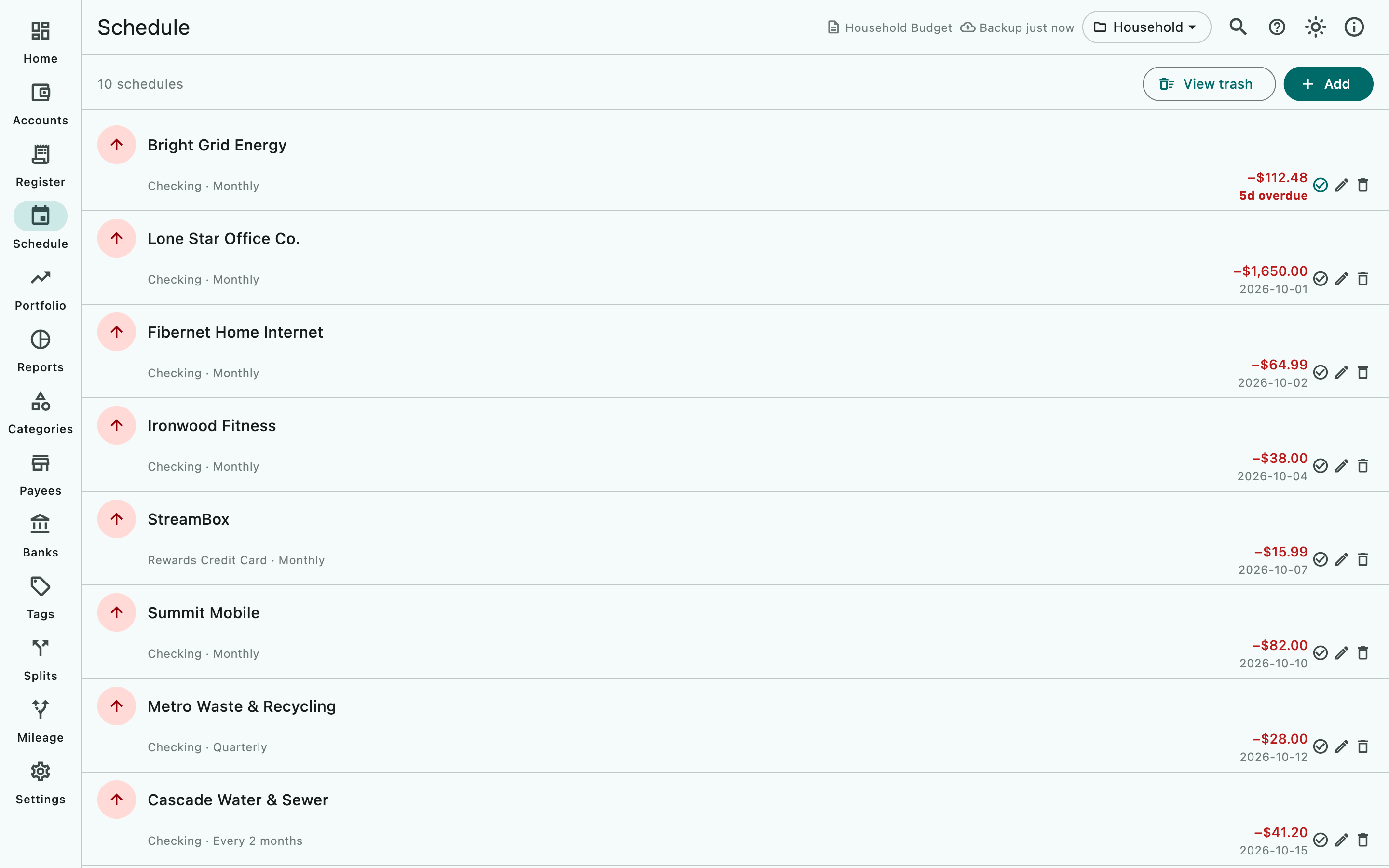
Post a scheduled transaction
- In the row, choose Post now (the check-circle icon; it turns blue when the transaction is due).
- Studio writes one transaction to the account’s register, dated on the shown next date, and moves the schedule forward to the following occurrence.
Post now also works before the due date; the transaction is still dated on the scheduled date. An overdue schedule stays in the list, in red, until you post it or delete it.
Enter it with changes
When this month’s bill differs (a higher electricity bill, a different date), use Enter into register (the list-with-a-plus icon beside Post now) instead:
- The transaction dialog opens, filled in from the schedule’s next payment.
- Change the amount, date or anything else, and select Add. The schedule moves on to its next date.
- If you changed the amount, Studio asks “You changed the amount. Use it for the rest of this schedule?” Choose Yes to update the schedule, or No to change this payment only. A transfer’s account is asked about the same way.
On a phone, Enter into register, Skip, Edit schedule and Delete schedule are in the row’s ⋮ menu.
Let Studio post automatically
Tick Post automatically on open in the form (its subtitle reads Posts without manual confirmation). Each time you open the app or the document, every automatic schedule that is due is posted in one go and a message says N scheduled transactions posted automatically. Nothing is posted while the app is closed; it catches up the next time you open it.
Skip one occurrence
Choose Skip (the skip-forward icon beside Post now). The schedule moves to its next date and nothing is posted. Skip does not use up a payment on a Numbered schedule and never ends a schedule; it is off for a Once schedule and for a schedule in an account that is read-only on the free version. There is no undo for a skip. To move a schedule to a particular date instead, choose Edit schedule (the pencil) and set the Start date to the date the series should resume on; Studio recalculates the next date as the first occurrence of the pattern after the last posted date.
Get a reminder before a bill is due
The Reminder lead days (optional) field shows a system notification the given number of days before the due date: 1 means the day before, 7 means a week before, and blank or 0 means no reminder. Reminders only fire while AceMoney Studio is open, and only for schedules in the portfolio you have open.
macOS
The first time you enter a lead time the form shows This reminder won’t fire yet — notifications aren’t enabled. with an Enable button. Choose Enable, then Continue in Allow reminder notifications?, then allow the notification in the macOS prompt. You can also do this later under Settings ▸ Account ▸ Reminders ▸ Enable reminders.
Windows
Same as macOS; allow AceMoney Studio in the Windows notification settings if asked.
Linux
Same as macOS. If the form says This reminder won’t fire — this system has no notification service AceMoney Studio can reach right now., your desktop has no notification service running; the schedule still works, only the notification is missing.
iOS (iPhone and iPad)
From version 1.2, the first release of AceMoney Studio for phones and tablets. Reminder notifications are not available in the phone version. The Reminder lead days field still appears, but no notification is shown. Use the Upcoming bills panel on Home to see what is due in the next 30 days.
Android
From version 1.2. Same as iOS: no reminder notifications; check Upcoming bills on Home.
Edit or delete a schedule
- Edit schedule (the pencil) opens the same form with Save. Changing the amount, payee, category or comment never moves the next due date; changing the Frequency or Start date recalculates it.
- Delete schedule (the bin) moves the schedule to the trash at once; the message offers Undo for a few seconds. Transactions already posted stay in the register.
- View trash opens Archived Schedules, with Restore and Delete permanently. A finished Once or Numbered schedule is archived there on its own.
Schedules an earlier version imported wrongly
Studio 1.0.0 and 1.0.1 read some of AceMoney Classic’s scheduled transactions wrongly: a deposit became a withdrawal, a transfer became a withdrawal, a weekly bill became monthly, and a limit on the number of payments was lost. Choose Tools ▸ Check Document…: each such schedule is listed under Needs your review in a line that begins with its account, amount and comment and says it “was imported by Studio 1.0.0 or 1.0.1”. Studio changes nothing by itself. For each line:
- Open the scheduled transaction (Schedule: the row with the account and the amount the line starts with; the pencil opens it) and set what the line says your Classic file has: the kind (Withdrawal, Deposit or Transfer; for a transfer, the account in Transfer to account) and how often it repeats. If the line says payments left, choose Numbered and type the payments still to come: the number in the line minus the transactions it says the schedule has posted since the import (if it says “at least”, count them in the Register). Save.
- Find the transactions it posted. The line gives their number (“at least” when you changed the frequency after the import). They are in the schedule’s account, with its amount and comment, on the dates it posted. In the Register, search for the schedule’s comment and look at those dates.
- A deposit imported as a withdrawal: each payment took money out instead of putting it in, so the balance is off by twice the amount for each. Open each payment and change it to a deposit, or delete it and enter the deposit.
- A transfer imported as a withdrawal: each payment took money out of one account and put none in the other. Open each, make it a Transfer to the account the line names (or delete it and enter the transfer).
- A weekly (or yearly, or other) bill imported as monthly: it posted too few payments (a weekly bill) or too many (a yearly bill). Compare the Register with your bank: delete the payments that should not exist (they go to the Trash and can be restored) and enter the ones that are missing, or let the corrected schedule post them from its next date.
- If it is simpler, import the Classic file again into a new document.
What the list can and cannot find: a schedule is listed only when Studio can match it to its line in the Classic file the document kept. A schedule whose amount, comment or start date was changed since the import, or whose account was renamed, is not listed, and neither are two schedules that cannot be told apart. The number in a line counts the payments that are still in your Register and that Studio can tie to the schedule; it reads “at least” when you changed the schedule’s frequency since the import, or when some of its payments were deleted.
See what is coming
Home shows Upcoming bills, the next five schedules due within 30 days, overdue ones in red. Projected cash flow — next 3 months adds every schedule into a month-by-month table. Reports ▸ Forecast lists the same coming payments line by line, with each account’s running balance, and its month totals match that table (Reports and charts).
To see coming bills in the Register too, set Settings ▸ Document ▸ Display future bills for to how far ahead you want them (it is None until you choose). They are listed below the real transactions; right-click one for Enter into register or Skip.
Find charges you have not scheduled
From version 1.2, select Recurring charges (the circling-arrows icon) on the Schedule page. Studio looks through your history for charges that repeat and are not on your schedule yet, such as a streaming subscription.
- Each one shows its payee, how many charges and how often, its Recent charges and Next expected date. Price went up flags a charge whose latest amount is higher than before.
- Add to schedule opens a new schedule filled in from the series. Check it and select Add.
- Not recurring hides a series that does not really repeat; Show again brings it back from the hidden list.
- At the top, Scheduled charges that went up lists schedules whose latest charge is above the scheduled amount, with Edit schedule to update it.
Home can show a Recurring charges card with the same counts. It is off by default; turn it on in Customize Home.
Common questions
Why did the next date not change after I edited the schedule?
Only the Frequency and the Start date drive the dates. Editing the amount, payee, category, comment, reminder or the automatic switch keeps the next due date exactly where it was, so a price change never makes you skip or double a payment.
Why does Studio refuse my edit with “No occurrence of the new schedule falls after the last posted date”?
The new frequency and start date would put the next occurrence on or before a date that has already been posted, which would post the same period twice. Move the start date past the last posted date, or delete the schedule and add a fresh one.
Can I schedule a transfer between two accounts?
Yes. Choose Transfer as the type and pick the Transfer to account. Each time the schedule posts it writes both sides of the transfer. The Transfer amount matters only when the two accounts use different currencies; it defaults to the amount. A transfer may carry a category, and has no payee.
Can I set an end date or a number of payments?
A number of payments, yes: choose Numbered and type the Number of payments left (the list shows Payments left). The schedule is archived by itself after the last one. There is no end date: a Continuous schedule repeats until you delete it. A Once schedule ends itself after posting.
What does “Twice a month” do?
It posts about every half month, the way AceMoney Classic does. Each date is worked out from the one before it: from a day before the 15th, 15 days later; from the 15th, the last day of the month; from the last day of a month, the 15th; from any other day, the day that is 15 days before the same day next month (so a payment on the 20th is followed by the 5th, then the 20th). A schedule that starts on the 1st to the 12th pays on that day and 15 days later, every month.
Do scheduled transactions count against the free account limit?
No. The free version limits the accounts you can edit, not schedules. Scheduling and automatic posting are free on every platform.
Can Studio print checks or pay bills for me?
No. Studio records and schedules payments, but it does not print checks and never sends money anywhere. Pay through your bank as usual and post the scheduled transaction when it goes out; the Number field in the register keeps the check number.
Are reminders checked for every portfolio?
No. A reminder fires only for schedules in the portfolio that is open, and only while AceMoney Studio is running.
Troubleshooting
The Schedule icon shows a red number. That many schedules are due today or overdue. Open Schedule and choose Post now or Delete schedule for each red row.
“This reminder won’t fire yet — notifications aren’t enabled.” Choose Enable next to the notice and allow the notification when your operating system asks.
“This reminder won’t fire — notifications were declined. Enable them in your operating system’s notification settings.” You said no to the system prompt earlier. Allow AceMoney Studio in your operating system’s notification settings.
“0 means this reminder is off. Enter 1 or more to turn it on.” You typed a zero in Reminder lead days. Enter the number of days before the due date, or leave the field blank.
“Enter a positive amount.” or “Select an account.” The amount must be greater than zero and an account must be chosen before the form can save.
“… was not posted: its formula cannot be worked out (…).” The reason in brackets says what is wrong, for example that no account has the name in the formula. Edit the schedule and correct the formula, or type a plain amount.
A transaction appears twice in the register. The bill was entered by hand and then posted from Schedule as well, or two schedules exist for the same bill. Delete the extra transaction in the register and check Schedule for a duplicate row. Editing a schedule never re-posts a period Studio has already posted.
Document Doctor says a scheduled transaction is more than 90 days overdue. Open Schedule, find the red row and either Post now to catch up or edit the Start date to resume from a recent date.
I deleted a schedule by mistake. Choose Undo in the message within a few seconds, or open View trash and choose Restore.
No notification appeared on my phone. Reminder notifications exist only on macOS, Windows and Linux. On a phone (from version 1.2) use Upcoming bills on Home.