
AceMoney Studio
Categories and budgets
Categories are how AceMoney Studio sorts your spending and income (Groceries, Auto:Fuel, Salary), and every category can carry a budget. This page shows you how the category tree works, how to add, rename, merge and delete categories, how to set a budget amount, its period and month-by-month amounts, and where your budgets are tracked.
The category tree
- Select Categories in the navigation rail. On a computer you can also press F5.
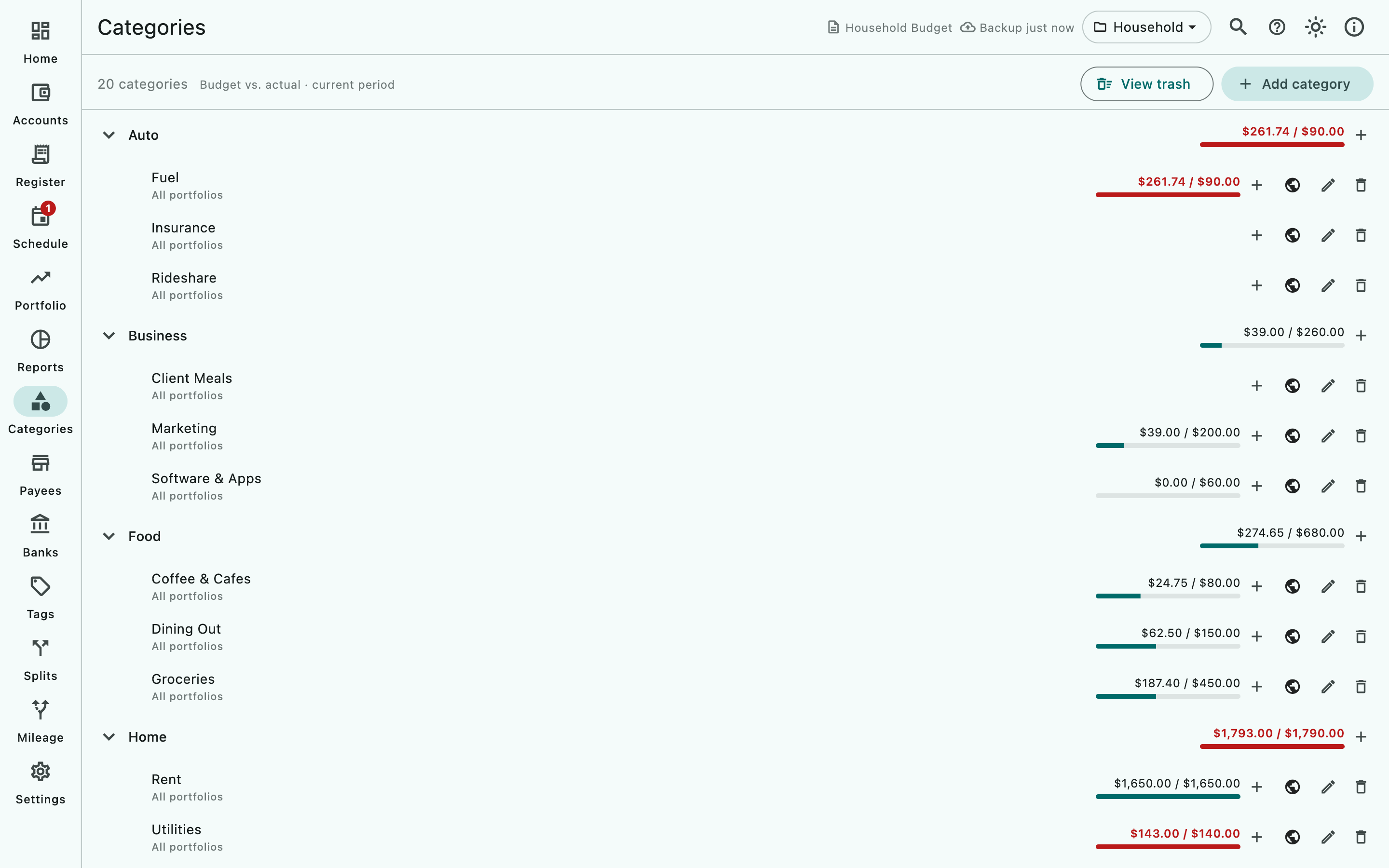
- The header shows how many categories you have, the note Budget vs. actual · current period, and the buttons View trash, Merge…, Delete unused categories and Add category. From version 1.2 it also has Budget by month and Rules.
Categories are named as paths separated by a colon: Auto:Fuel is the Fuel subcategory of Auto, and Auto:Fuel:Premium goes one level deeper. There is no limit to the depth. The page shows them as a tree: select the chevron on a group to expand or collapse it. A parent that only exists as a prefix (Auto when you have Auto:Fuel but never created Auto itself) is shown as a header row without its own edit and delete buttons.
Each row shows the name, a quiet line under it with the category’s Code, where it is available (with several portfolios) and its Notes (one short line, cut with … when long), the budget cell (spent so far against the budget, with a bar), and the buttons Show transactions, Add subcategory, Edit and Delete category. Tap or click the row to edit it. A group row rolls up its children’s budgets and spending. Show transactions opens Reports on the Transactions report for that category and every subcategory under it, over all dates; on a group header that has no category of its own it does the same for everything under it. In AceMoney Studio Mobile (from version 1.2, not in the stores yet), on a phone the buttons are one ⋮ menu with the same words.
Add a category
- Select Add category.
- Type the Name. To nest it, write the full path, for example
Home:Repairs. The helper text reminds you: Use “Parent:Child” to nest. - Select Add.
To add a subcategory of an existing category, select Add subcategory on its row: the Name field opens with the parent’s path and a colon already filled in.
Categories are also created for you when you type a new name in the Category field of a transaction or a scheduled transaction, including nested paths. See Enter transactions in the register.
Rename a category, or mark it as income
- Tap the row, or select Edit.
- Change the Name. The Code field is optional; under it Studio says: Optional. An accounting code for this category, such as a ledger or tax code.
- Choose Expense or Income. This tells Studio which way the money flows for that category: an expense budget counts what you spend, an income budget counts what you receive.
- Select Save.
Set a budget on a category
- Tap the category, or select Edit.
- Enter the Budget amount, the amount you plan to spend (or, for an income category, to receive) in each period. Leave it blank for no budget; the helper text says Leave blank for no budget.
- Choose how often it renews in Resets: Weekly, Twice a month, Monthly, Quarterly, Every 6 months or Yearly.
- Select Save.
Budgets are part of the free version. You can budget a parent and its children independently; a group row adds up its children’s budgets and actuals.
Set a different amount for one month
Some months cost more: a holiday in December, an insurance bill in March. The Edit category dialog has a Monthly amounts section for that: An amount for a month is added to this category’s budget for that month.
- Open the category with Edit.
- Under Monthly amounts, choose Add a month….
- In Monthly amount, pick the Month and Year, enter the Budget amount for that month and select Save. If the month already has an amount, the dialog says This month already has an amount. Saving replaces it.
Each month you add is listed with buttons to edit or remove it; a removal shows Monthly amount removed with Undo. These changes are saved at once, without the dialog’s own Save.
Roll over what is left
From version 1.2, the Edit category dialog has a Roll over what is left switch: What a period leaves unspent, or overspent, carries into the next one. While it is on, a line says which day the carry is counted from (Counting from …), and the budget shown for each period includes what earlier periods left over, or took from it.
Where budgets are tracked
- On the Categories page. Every budgeted row shows spent so far against budget for the current period of that category’s own cycle, and a bar. A parent row adds its subcategories’ budgets and spending to its own, over its own cycle (the month, if the parent has no budget of its own). An exceeded expense budget turns red and bold; an income budget never does. Budgets that do not renew monthly carry a short suffix after the amount, such as /wk, /qtr or /yr; a monthly budget has none.
- On the Home page. The Budget goals panel shows up to six gauges and six bars, one for each main category that has a budget (a main category counts its subcategories too), from A to Z. When every one of them renews in the same period the title says which (Budget goals — this month, or week, quarter, year); otherwise the title is just Budget goals and a budget that does not renew monthly carries a short suffix such as /wk. The panel is part of the free version, and so is setting the budgets themselves. See Home dashboard and The free version and the license.
The Reports page has two budget reports, Budget by category and Budget by subcategory: for the period you pick they show what you spent, what you budgeted, the difference and the percent. See Reports and charts.
See the whole year: Budget by month
From version 1.2, Budget by month on the Categories page opens a grid of every category with a budget across the twelve months of a year, with a Year column for the total. Each cell shows Budgeted, Actual and Difference for that month, the same figures as Home, the Categories page and the budget reports. Use the arrows beside the title (Budget by month, 2026) to change the year.
Select a cell to change that month’s own amount (This month’s own amount), which is added to the category’s recurring limit; the dialog also shows the Recurring limit for this month and, for a category that rolls over, what was carried in. To change the recurring limit itself, edit the category.
Let Studio learn categories for imported transactions
From version 1.2, when you give an imported transaction a category in the register, Studio asks in a message at the bottom: Always use … for …? (for example, Always use Groceries for Corner Market?). Choose Always and Studio uses that category for that payee’s transactions from then on: when it brings them in from a bank feed or a file, and when you type that payee in a new transaction. Undo in the next message takes the rule back.
Rules on the Categories page lists every rule you made: the payee, the category it gives, how often it was confirmed and when it last changed. Select Delete rule to remove one. In the register, a transaction’s menu also offers Rule for … for its payee.
Delete and restore a category
- Select Delete category on the row. There is no confirmation: the category moves to the trash and the message … moved to trash offers Undo for a few seconds (⌘Z / Ctrl+Z on a computer).
- To bring it back later, select View trash, find it in Deleted Categories and select Restore. Delete permanently removes it for good after a confirmation.
Deleting a category does not delete the transactions that used it. If you want them filed elsewhere, open each transaction in the register and pick another category; the register Filters ▸ Categories list finds them.
Merge categories
Select Merge… above the list. In Merge categories, pick the category to merge for Merge category (a subcategory by its full name, such as Food:Groceries) and the category to keep for into category, then select OK. Every transaction, split line and scheduled transaction that used the merged category now uses the one you kept; nothing is asked first, and amounts, dates and cleared or reconciled states do not change.
The merged category goes to the trash together with its budget; the category you keep does not receive it. A category that has subcategories cannot be merged: merge its subcategories first. A line such as Merged … into …. 7 replacements were made. offers Undo.
Delete unused categories asks one question that gives the count, then moves every category that nothing uses to the trash (a category with a used subcategory counts as used). Undo brings back exactly those.
Share a category between portfolios
In a document with several portfolios, each row shows All portfolios or … only below the name, and an Available in button switches between them. Keep the standard categories shared and pin business-only ones to the business portfolio. Several portfolios need the unlocked app; see Portfolios.
Platform differences
macOS
F5 opens Categories. Renaming or deleting has the same undo as elsewhere: ⌘Z undoes the last delete.
Windows
As on macOS, with Ctrl+Z.
Linux
As on Windows.
iOS (iPhone and iPad)
AceMoney Studio Mobile is not in the app stores yet; this describes it from version 1.2. A notice at the top, shown once and then dismissed for good, says the page reads your full transaction history, so the budget figures cover everything, not only the register’s recent window. On a narrow phone the header buttons may be tight; turn the phone sideways if Add category is hard to reach.
Android
As on iOS.
Common questions
Can a budget be weekly or yearly rather than monthly?
Yes. Resets offers Weekly, Twice a month, Monthly, Quarterly, Every 6 months and Yearly. A category imported from AceMoney Classic keeps the cycle it already had, such as Every 2 weeks or Every 2 months, and that cycle stays selectable for that category.
How do I budget for income?
Edit the category, choose Income and set the Budget amount you expect to receive per period. The bar fills as income arrives.
Do subcategory budgets add up into the parent?
The group row shows the sum of its children’s budgets and spending, together with the parent’s own budget if it has one. Budget at whichever level you find useful; many people budget Groceries as a whole and only track subcategories for detail.
Why is a category red?
Spending in the current period has passed the budget amount. Only expense budgets turn red; an income budget shows its bar filling as money arrives and never changes color.
Why does a row show a bigger budget than the Budget amount I typed?
A main category adds the budgets of its subcategories to its own. A category can also have a Monthly amounts entry for the current month, which is added to its budget for that month; open Edit to see them. From version 1.2, a category that rolls over also includes what earlier periods left.
Can I see my budgets in a report?
Yes. Open Reports and choose Budget by category (one row for each main category, its subcategories added in) or Budget by subcategory (every category on its own row). Budgets are also tracked on the Categories page and in the Budget goals panel on the Home page.
Did my AceMoney Classic budgets come across?
Yes. Each category’s budget limit and period are imported with the category, so they appear on this page straight away, including cycles Studio’s own list does not offer, such as Every 2 weeks. A budget can also carry month-by-month limits in AceMoney Classic; they arrive as the category’s Monthly amounts, where you can change or remove them, and Studio adds each of them to the category’s budget for its month, on this page, in Budget goals and in the budget reports. Check the Expense / Income setting on the categories you budget. See Import data.
What happens if I move a transaction to a different category?
The old and new categories’ spending figures update at once; budgets only ever look at the transactions currently filed under them.
Troubleshooting
A category I never created appears as a group. You have a category such as Auto:Fuel without a plain Auto. The header row stands in for the parent. Select Add category and create Auto if you want to budget or edit the parent itself.
Renamed a parent and the children stayed behind. Rename each child to the new path; children are separate categories.
The budget cell shows a suffix like /qtr I did not expect. The category’s Resets is not monthly. Edit the category and change Resets.
Budget vs. actual looks wrong on my phone. In AceMoney Studio Mobile (from version 1.2, not in the stores yet), the figures cover your full history for the current period. Check the register with Filters ▸ Categories and This month to compare, and make sure no transaction is filed under a look-alike category.
A month’s budget is higher than the Budget amount. That month has a Monthly amounts entry. Open Edit on the category to change or remove it.
I deleted a category by mistake. Select Undo at once, or open View trash and select Restore.
Typing a new category in a transaction created it at the top level. Type the full path, for example Home:Repairs, not only the child name.