
AceMoney Studio
Track investments and update quotes
The Portfolio page tracks stocks, funds, bonds and other investments next to your cash accounts, with live prices from a quote service you pick. Investments need an AceMoney Studio license. On the free version the page shows the panel Investments is part of AceMoney Studio with an Unlock AceMoney Studio button instead; any investment data already in the document stays there and is all back the moment you unlock.
Before you begin
- Create the account the trades settle in (a brokerage or cash account) on the Accounts page. Buys and sells post their cash effect to that account.
- Symbol search and price downloads need an internet connection. Everything else works offline.
Add an investment
- Open Portfolio in the navigation rail and choose Add investment (or Add an investment on an empty page).
- Type the ticker or the company name in Symbol. Matches appear as you type, each with its exchange and the service that found it. Pick one to fill the name and set that service as the quote source.
- Fill in Name (optional) if you did not pick a match.
- Choose a Type: Stock (the default), Mutual Fund, ETF, OEIC, Unit Trust, Bond, Index, Commodity, Currency, Real Estate, Trust, Options, Futures, Intl. Stock, Intl. Bond or Other.
- Leave Currency on Same as the account unless this holding trades in a different currency from its account.
- Choose a Quote provider: None — manual only, Yahoo Finance (the default, no key needed) or one of the services marked (needs a key).
- If your quote source wants a different symbol from the one you typed in Symbol (a London share often needs an exchange suffix), type it in Quote symbol; the helper says Only if your quote source uses another symbol, for example VOD.L. Leave it empty to use Symbol. It may not contain a space or a slash: A quote symbol has no spaces and no slash.
- Tick Quote is in cents or pence (divide by 100) for exchanges that quote in pence or cents.
- Leave Auto-download quotes on so Update quotes includes this investment.
- Choose Add.
A computer that still runs an older Studio shows ETF, OEIC and Unit Trust as Other until you update it; update every computer you use with the document.
If nothing matches, the dialog says the symbol has no active match on any configured source. You can still type the symbol and save; prices then come from the service you pick, or you leave the provider on None — manual only.
Record a buy, sell or dividend
- On Portfolio, choose Add transaction on the holding’s row, or open the Transactions tab and choose Add transaction.
- Pick the Investment and the Account the money comes from or goes to.
- Pick the Type. The list covers Buy (the default), Sell, Dividend, Reinvest, Add, Remove, and the capital-gain types (short-term and long-term, each with a reinvest variant). From version 1.2 it also has Stock split.
- Set the Date.
- Enter Shares and Price/share for buys, sells, adds and removes. For a dividend or a capital gain enter Dividend instead. A reinvest, or a reinvested capital gain, needs all three. Add a Commission if there was one.
- If the investment is priced in a different currency from the account, the dialog shows both currencies, the total in the investment’s currency, and a Cash debited field (Cash received for a sale or a dividend) in the account’s currency. Enter the price, commission and dividend in the investment’s currency. Studio fills the cash field from the latest exchange rate you have stored; type over it with the amount your broker really took or paid. With no stored rate the field starts empty and Add stays off until you type the amount.
- Choose Add.
Buys and sells post the cash automatically to the account you chose, so your register and net worth stay right without a second entry. For an investment in another currency, the cash that posts is the amount in that field, in the account’s currency. Studio does not store the exchange rate it implies. An investment transaction cannot be edited afterwards: delete it from the Transactions tab with Delete and add it again. Deleting it also deletes its cash entry in the register. From version 1.2, the one thing you can change on a sale is its lots (below).
Record a stock split
From version 1.2. Choose Stock split as the Type, pick the Investment and the Account, set the Date and enter the ratio as New shares and Old shares: 2 and 1 is a two-for-one split, 1 and 10 is a one-for-ten reverse split. A split moves no cash and has no price or commission. Every share you hold of that investment in that account becomes the new number of shares and each share costs less (or more), so your total cost stays the same. A split takes effect at the start of its date: a buy or sell on the same day counts after it. If you receive cash in place of a fraction of a share, enter that as a separate sell.
Choose how an account costs its shares
From version 1.2. On the account’s form (an investment account only) pick the Cost basis method:
- First in, first out (the default): the oldest shares are sold first.
- Average cost: every share you hold costs the average of what you paid, and a sale takes its shares at that average.
- Specific lots: each sale names the lots it sells. Add the sale, then choose Choose lots on the sale’s row in the Transactions tab and enter how many shares to take from each lot; whatever you leave unchosen is taken first in, first out, and the Realised gains report says so on that row.
The method belongs to the account. When you look at the Portfolio across accounts that use different methods, each account is worked out by its own method and the rows are added up. With every account on first in, first out, nothing changes from before. Versions before 1.2 always cost first in, first out, and show a stock split as a purchase of zero shares, so if you use the document on several computers, update them all; until then gains can differ between versions.
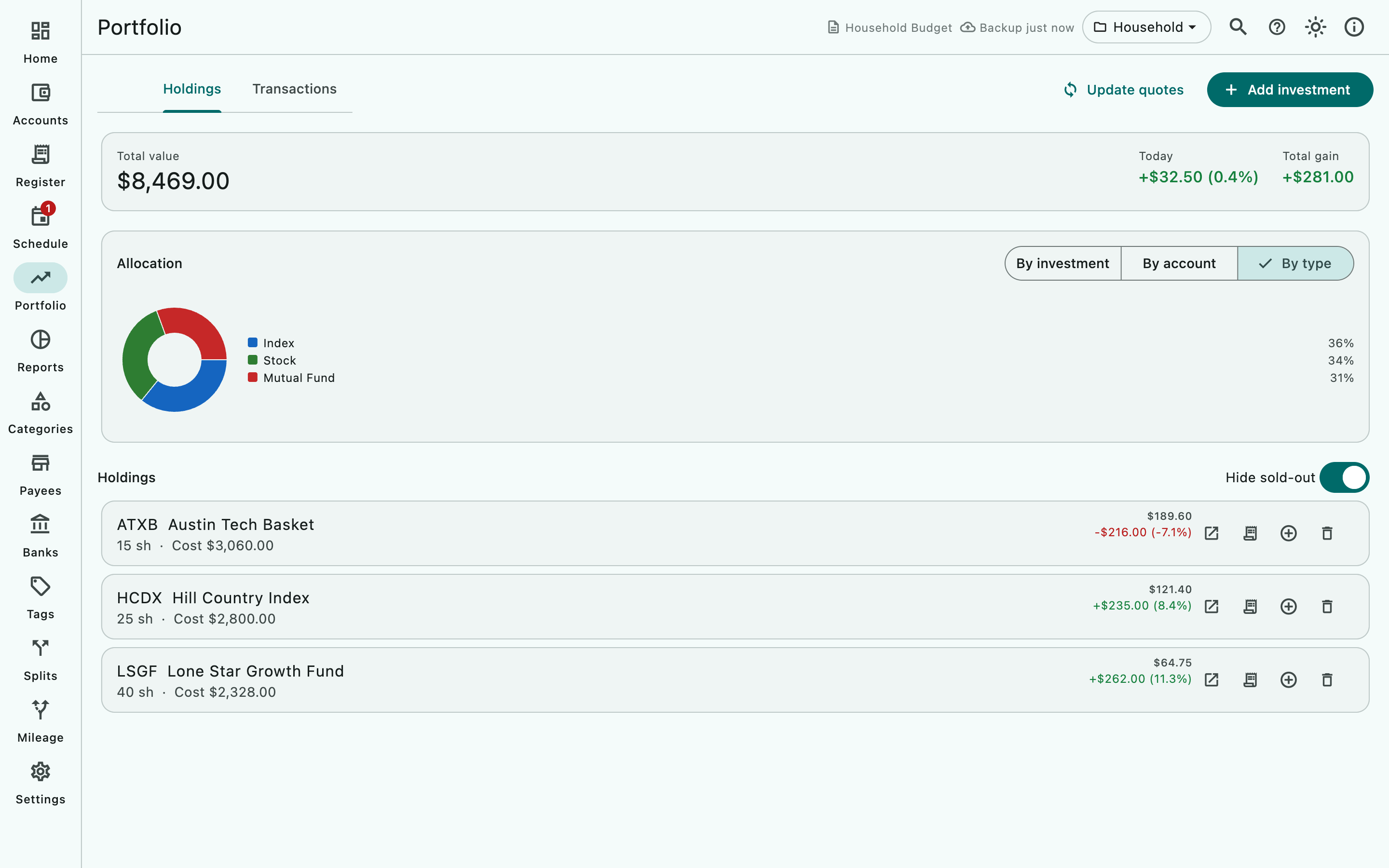
Read the Holdings tab
- The summary card shows Total value, Today (the change in money and percent) and Total gain. When holdings trade in several currencies the card says Converted to your base currency; an ≈ mark means a rate is missing: a holding with no rate to your base currency is counted at the cash you paid for the shares you still hold, with a gain of zero, and anything else without a rate is converted one-to-one.
- Allocation draws a pie By investment, By account or By type. With a single holding it says there is not enough variety to chart yet.
- Holdings lists each position with shares, cost, the last price and the gain. A clock icon on the price means it is from an earlier date, not today. Switch on Hide sold-out to hide positions you no longer hold.
- On a computer, the List and Table switch next to Holdings shows the same positions as a table with a Total row. Click a row of the table to edit that investment.
- Watchlist lists investments you added without owning any shares, with today’s change.
- Row actions: Open on the finance site you chose, View transactions, Prices, Add transaction and Delete investment.
- The buttons at the top of the page export the portfolio (Export portfolio) and print it (Print portfolio, or ⌘P on macOS, Ctrl+P on Windows and Linux).
Update quotes
Choose Update quotes at the top of the Portfolio page. Studio downloads a price for every investment that has a quote provider set, has its key entered if the service needs one, and has Auto-download quotes on. While it works, a line shows the progress, for example Updating 3 of 8: ACME. When it is done, a line under the tabs reads Updated n of m quote(s)., followed by one line for each symbol that was not updated and why, for example ACME: No quote returned. Only the symbol is sent to the service you chose: the Quote symbol if you set one, otherwise the Symbol. Open in browser and the cents or pence box do not use the quote symbol.
See and correct a stored price
Studio keeps each price it downloads, one per day. To see them, choose Prices on the investment’s row; the SYMBOL prices list shows the newest first.
- Choose Add price to enter a price by hand, for example for a fund no service covers.
- Choose Edit this price on a row to correct it, or Delete this price to remove it.
Choose a quote service and enter your own API key
Yahoo Finance is the default source and needs no key. If you prefer another service, or a symbol is only covered elsewhere:
- Open Settings, then the Currency & Quotes tab, and scroll to Market data.
- Follow the Get a free … key link under the service you want and sign up there.
- Paste the key into that service’s field, for example Finnhub API key or Alpha Vantage API key. Alpaca needs both Alpaca key ID and Alpaca secret key.
- Back on Portfolio, edit the investment and set its Quote provider to that service.
Keys are stored in the open document on this device only and are sent to nothing but the service they belong to. Each service’s free tier has its own request limits, shown under its field; a key on a free tier is enough for a personal portfolio updated a few times a day.
Choose where “Open on” goes
Under Market data, the last row picks the finance site that Open on uses for every investment: Yahoo Finance (the default), Google Finance, Bloomberg, MarketWatch, Finviz, TradingView, Stock Analysis, CNBC or Financial Times. An individual investment can override it with its own Open in browser setting in the edit dialog; Settings default follows the Settings choice.
Delete an investment
Choose Delete investment on the row. The holding moves to the trash and a message offers Undo for a moment.
iOS (iPhone and iPad)
AceMoney Studio Mobile is coming with version 1.2. In it, the Portfolio page, the dialogs and the Market data settings are the same as on desktop, except that there is no Table view. Symbol search and Update quotes need a connection. Investments need the app’s own unlock.
Android
Same as iOS.
Common questions
Is investment tracking free?
No. It is included with an AceMoney Studio license. Once unlocked there is no limit on the number of investments or transactions.
Do I need an API key?
No. Yahoo Finance is the default and needs no key. A key is only needed when you choose one of the services marked (needs a key).
Where is my API key stored?
In the document that is open, on this device. It is never sent to MechCAD and goes only to the service it belongs to when you update quotes or search a symbol there. A copy of the document carries the key with it, so keep copies private.
Does a buy or sell change my account balance?
Yes. The cash effect posts to the account you picked in the transaction, including any commission, so the register of that account shows the trade. For an investment in another currency, the amount posted is the one in Cash debited or Cash received.
Can I edit an investment transaction?
No. Delete it from the Transactions tab and add it again with the right values. From version 1.2, the one thing you can change afterwards is which lots a sale closes, on an account that sells by specific lots (Choose lots on the sale’s row).
Can I follow a stock I do not own?
Yes. Add it as an investment without any transaction; it appears under Watchlist with today’s change.
What does the clock icon on a price mean?
The last price is from an earlier day; its tooltip gives the date. Choose Update quotes to fetch today’s price; if the service returned nothing new, the icon stays.
Can I enter a price by hand?
Yes. Choose Prices on the investment’s row, then Add price. This is the way to value a holding no quote service covers.
What does the ≈ mark mean?
One of your holdings trades in a currency with no exchange rate in the document. Studio does not guess: it counts that holding at the cash you paid for the shares you still hold, with a gain of zero, and anything else it had to convert without a rate one-to-one. Download rates with Settings ▸ Currency & Quotes ▸ Update exchange rates; see Currencies.
Troubleshooting
No active match for the symbol on any configured source. The symbol may be delisted, on an exchange the services do not cover, or need an exchange suffix. Put the symbol with its suffix (for example VOD.L) in Quote symbol, save, and update again; or try a different Quote provider with your own key.
“No investments are set up for auto quote download yet.” Every investment has Quote provider set to None — manual only or Auto-download quotes switched off. Edit the investment and change either.
Updated 0 of n quote(s). Read the lines under it: each names a symbol and the reason. Add a … API key in Settings. means the service needs your key under Market data. No quote returned. means the service had no price; check the connection and the symbol. A free-tier key that has used up its daily requests returns nothing until the limit resets.
The price is a hundred times too big or too small. The exchange quotes in pence or cents. Edit the investment and tick Quote is in cents or pence (divide by 100), or untick it if it was on by mistake.
The value is right but the gain looks wrong. Check the Transactions tab for a missing or doubled buy. Cost basis is first in, first out (from version 1.2, unless you chose another method for the account), so the order of dates matters.
“Not enough variety yet to chart this breakdown.” The Allocation pie needs at least two slices; switch it to By account or By type, or add another holding.