
AceMoney Studio
Reconcile an account with a statement
Reconciling means checking your register against a statement from the bank, line by line, until both agree to the cent. AceMoney Studio walks you through it in one dialog: enter the statement’s ending balance and date, tick each transaction you find on the statement, and finalize when the difference reaches zero. This page shows you the flow, what to do when the numbers do not match, and what changes after you finalize.
Before you begin
- Have the statement at hand: you need its ending balance and its closing date.
- Enter any transactions from the statement period that are still missing from the register (fees, interest, a check you forgot). You can also add them part-way through; see Add a missing transaction while reconciling.
- Optionally mark transactions Cleared as you see them at the bank during the month. Cleared rows are pre-ticked when you reconcile, so most of the work is already done. See Enter transactions in the register.
Start reconciling
- Open the Register and choose the account in the Account picker.
- Select Reconcile in the toolbar. On a computer you can also press ⌘B (macOS) or Ctrl+B (Windows, Linux).
The Reconcile dialog opens. Under the starting balance it has New transaction, Select all and Deselect all. If every transaction in the account is already reconciled it says Nothing to reconcile — every transaction is already reconciled.
Step 1: enter the statement’s ending balance and date
- Type the closing balance printed on the statement into Statement ending balance.
- Tap the date button next to it and pick the statement’s closing date.
Until you enter a balance, the readout at the bottom says Enter the statement ending balance to see the difference.
Step 2: tick the transactions that appear on the statement
The list shows every transaction of the account that is not yet reconciled: the payee (or (no payee)), the date, · transfer for a transfer, and the signed amount. Rows that are already Cleared come pre-ticked; uncleared and imported rows start unticked.
- Go down the statement line by line and tick each matching transaction in the list.
- Untick anything that is ticked but not on this statement, for example a cleared transaction dated after the closing date; it belongs to the next statement.
Select all ticks every row in the list and Deselect all unticks them all, which helps when most rows, or almost none, are on the statement.
Above the list, Starting reconciled balance: shows the balance locked in by your previous reconciliations (or the opening balance the first time). Every ticked row is added to it.
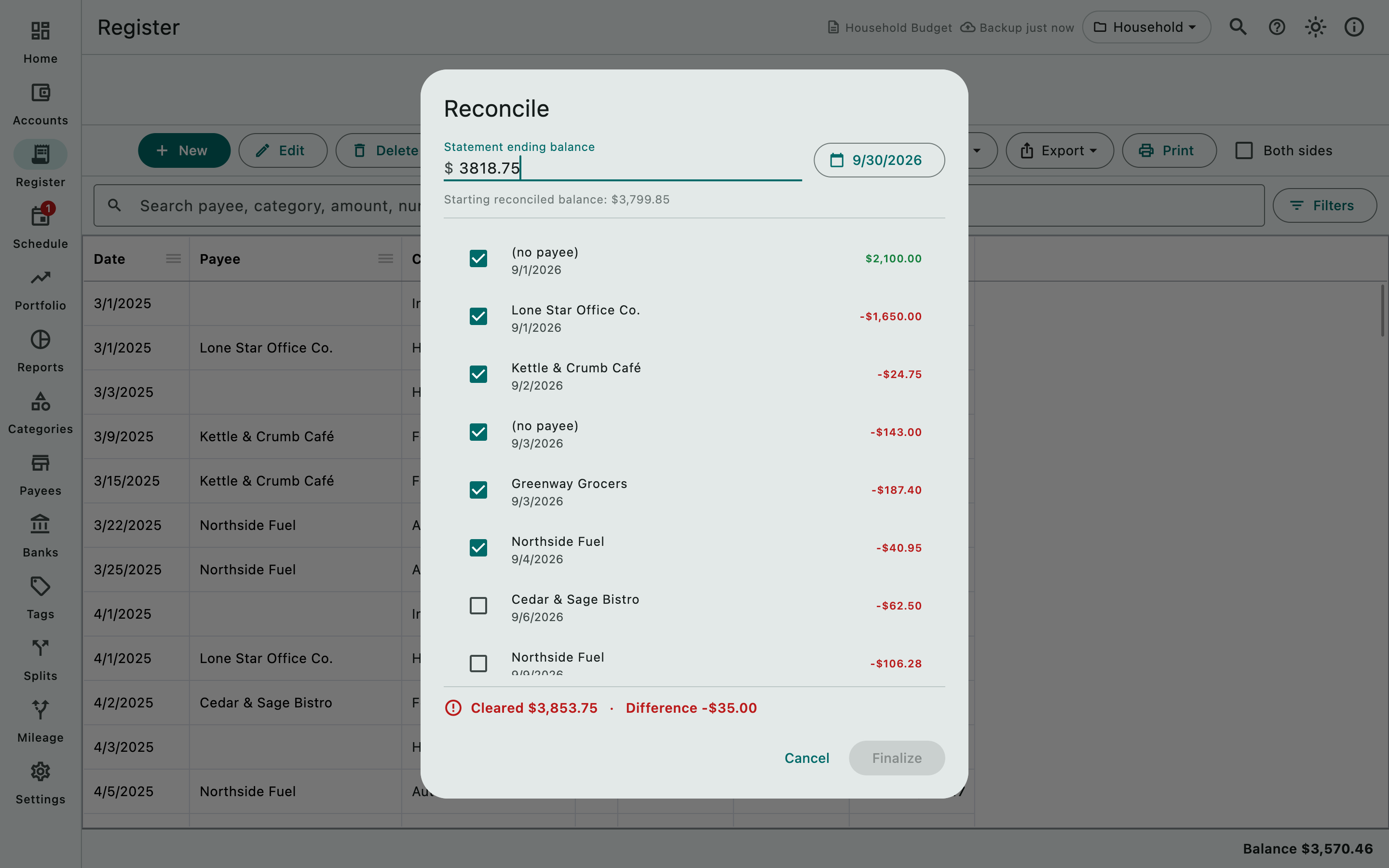
Step 3: watch the difference
As you tick, the readout at the bottom updates:
- Cleared … · Difference … (in red): the ticked rows add up to the first figure; the second is what is still unexplained compared with the statement’s ending balance.
- Balanced — ready to finalize. (in green): the ticked rows reproduce the statement exactly.
If the difference will not go to zero, see Find the cause of a difference.
Step 4: finalize
- When the readout says Balanced — ready to finalize., select Finalize. The button stays disabled until the difference is zero.
- The dialog closes. Every ticked transaction is now Reconciled (an R in the register’s St column) and the statement’s date and ending balance are recorded for the account.
Rows you did not tick keep their status and are offered again next time.
Find the cause of a difference
Work through these in order; each one matches a typical difference.
- The difference equals one transaction on the statement. It is missing from the register, or it is in the list but unticked. Search the list for the amount; if it is not there, add it (below).
- The difference equals one transaction in your register. It is ticked but not on the statement, usually dated after the closing date, or a duplicate. Untick it; delete the duplicate after finalizing.
- The difference is exactly twice an amount. A transaction was entered in the wrong direction (a deposit as a withdrawal, or the reverse). Fix it after cancelling, or note it and correct it after finalizing.
- The difference is a few cents or a small round amount. A bank fee, interest or a typo in one amount. Compare each ticked amount against the statement.
- The difference is divisible by 9. Two digits were transposed somewhere (for example 54.10 entered as 45.10).
- The difference equals the starting balance or a previous statement’s balance. The account’s opening balance is wrong, or an earlier reconciliation was finalized with an error. Check the opening balance on the Accounts page and the earlier statements.
- You entered the ending balance with the wrong sign. For a card you owe money on, it must be negative.
Add a missing transaction while reconciling
You do not need to leave the dialog:
- Select New transaction in the Reconcile dialog. The transaction dialog for this account opens on top.
- Enter the fee, interest or other missing transaction and select Add.
- The new row appears in the list, unticked, and the list scrolls to it. Tick it.
Your other ticks stay as they were. If you close the dialog with Cancel instead, your ticks are not kept: mark the rows Cleared in the register first (select them and press C on a computer, or use Set status), so they come pre-ticked next time.
After reconciling
- Turn on Hide reconciled in the register to see only the rows that still need attention. The running balance restarts from the reconciled balance.
- In Filters, switch on Unreconciled only, or tick Reconciled under Status, to list either group.
- The bottom Balance tooltip breaks the balance into Reconciled, Cleared, Uncleared and Imported amounts.
- Studio does not lock reconciled transactions. If you edit or delete one, or set its status back with Set status, the reconciled balance changes and the next reconciliation starts from the new figure, so avoid changing reconciled rows unless the statement was really wrong. When you change the status of several selected rows and some are Reconciled, Studio asks first: “… marked as Reconciled, and modifications are not recommended. Change anyway?”. Deleting several rows that include reconciled or cleared ones asks the same way.
Transfers and reconciling
A transfer has a status on each side. Reconciling an account marks only that account’s side; the other account’s side is reconciled when you reconcile that account against its own statement. You do not need Both sides here. The same holds for a Transfer from row that is a line of a split in another account: it is offered in the receiving account’s reconcile, and reconciling it marks the line, not the split. See Transfers and split transactions.
Platform differences
macOS
⌘B opens the dialog for the account shown in the register. C marks a selected row cleared before you start.
Windows
As on macOS, with Ctrl+B.
Linux
As on Windows.
iOS (iPhone and iPad)
From version 1.2, the first release of AceMoney Studio for phones and tablets. The dialog and the flow are the same, but the phone register lists only the last 90 days, and the reconcile list is drawn from it: only transactions from the last 90 days can be ticked, and everything older is treated as settled and folded into Starting reconciled balance, whatever its status. Reconcile each statement soon after it arrives, so no unreconciled transaction ages past the window. See Studio on mobile.
Android
As on iOS.
Common questions
What is the difference between Cleared and Reconciled?
Cleared is a note to yourself that the bank has processed the transaction. Reconciled means it has been matched to a statement in this flow and is part of the reconciled balance. The flow pre-ticks cleared rows, so clearing as you go makes reconciling a two-minute job.
Do I have to reconcile?
No. Reconciling is the surest way to know your register matches the bank, and it makes later mistakes easy to find, but every other feature works without it.
Can I reconcile a credit card?
Yes. Enter the statement balance as a negative number (what you owe) and tick the purchases and payments on the statement. A payment from your checking account appears as a Transfer from row.
Why is Finalize greyed out?
Because the difference is not zero yet. Keep ticking or unticking until the readout says Balanced — ready to finalize.
Can I undo a reconciliation?
There is no single undo, but nothing is locked: select the rows and use Set status ▸ Cleared or Uncleared to take them out of the reconciled balance (Studio asks first when several reconciled rows change), then reconcile again.
Why does the starting reconciled balance not match my previous statement?
A previously reconciled transaction was edited, deleted or set back to another status, or the opening balance changed. Find it with Filters ▸ Status ▸ Reconciled and compare with the earlier statement.
Where is the statement I recorded?
Studio keeps the statement date and ending balance with the account for its own bookkeeping; there is no statements list to browse. If the document syncs with AceMoney Cloud, the same statement record is on your other computers. The reconciled amount in the Balance tooltip shows the total reconciled so far.
Troubleshooting
“Nothing to reconcile — every transaction is already reconciled.” All transactions in the account are reconciled. If a new statement has arrived, enter its transactions first, or check that you picked the right account.
The list is empty but I know there are transactions. Only transactions that are not yet reconciled are offered, and a Transfer from row that belongs to a split in another account is offered too, like any other row: reconciling marks that line’s own status. On a phone, transactions older than 90 days are not offered at all.
On my phone the starting balance already includes transactions I never reconciled. On a phone, everything older than the 90-day window counts as settled. If the statement still disagrees, the difference is in that older period; correct it on the register as far as the window allows, and reconcile future statements promptly.
My ticks disappeared. The dialog forgets ticks when it closes. To add a missing transaction, use New transaction inside the dialog instead of closing it. Otherwise mark rows Cleared in the register before reopening it so they come pre-ticked.
Finalize did nothing and a message appeared. The change could not be written; the dialog stays open. Try Finalize again. If it keeps failing, run Document Doctor: Document Doctor.
A cleared transaction is ticked but not on this statement. It belongs to the next statement. Untick it; it stays cleared and is offered again next time.
The difference is a negative number. The ticked rows add up to more than the statement’s ending balance. Look for a ticked row that should not be, a deposit entered twice, or a withdrawal entered as a deposit.