
AceMoney Studio
Run reports and charts
The Reports page turns your register into answers: what you spent by category or by payee, how cash moved month by month, and what every account is worth. Reports are part of the free version, over all of your accounts; the exceptions are the investment reports, Performance by investments and (from version 1.2) Realised gains, which need AceMoney Studio unlocked with a license. Every report needs no setup and updates live as you add transactions.
Open a report
- Choose Reports in the navigation rail (on desktop, F7 also opens it).
- Pick a report in the catalog on the left, grouped under GENERAL, CATEGORY, PAYEE, BUDGET and INVESTMENT REPORTS. When you have saved favorites, a FAVORITE REPORTS heading with them sits above the groups (see Save a favorite report).
| Group | Report | What it shows | Chart |
|---|---|---|---|
| GENERAL | Account balances | Every account and its balance, with a Total; Subtotal per account group | none |
| GENERAL | Cash flow | Net money in or out per period, with a running total that starts from the balance of your accounts on the day before the period | bar chart |
| GENERAL | Forecast | Every coming payment and deposit of your scheduled transactions, line by line: Date, Account, Payee, Category, Withdrawal, Deposit and each account’s running Balance, starting from an Opening balance row | none |
| GENERAL | Last 30 days transactions | One row for each day of today and the 30 days before it: Date, # (how many transactions), Period Total and a running Total | bar chart |
| GENERAL | Transactions | Date, payee, category, withdrawal and deposit of every transaction in the period | none |
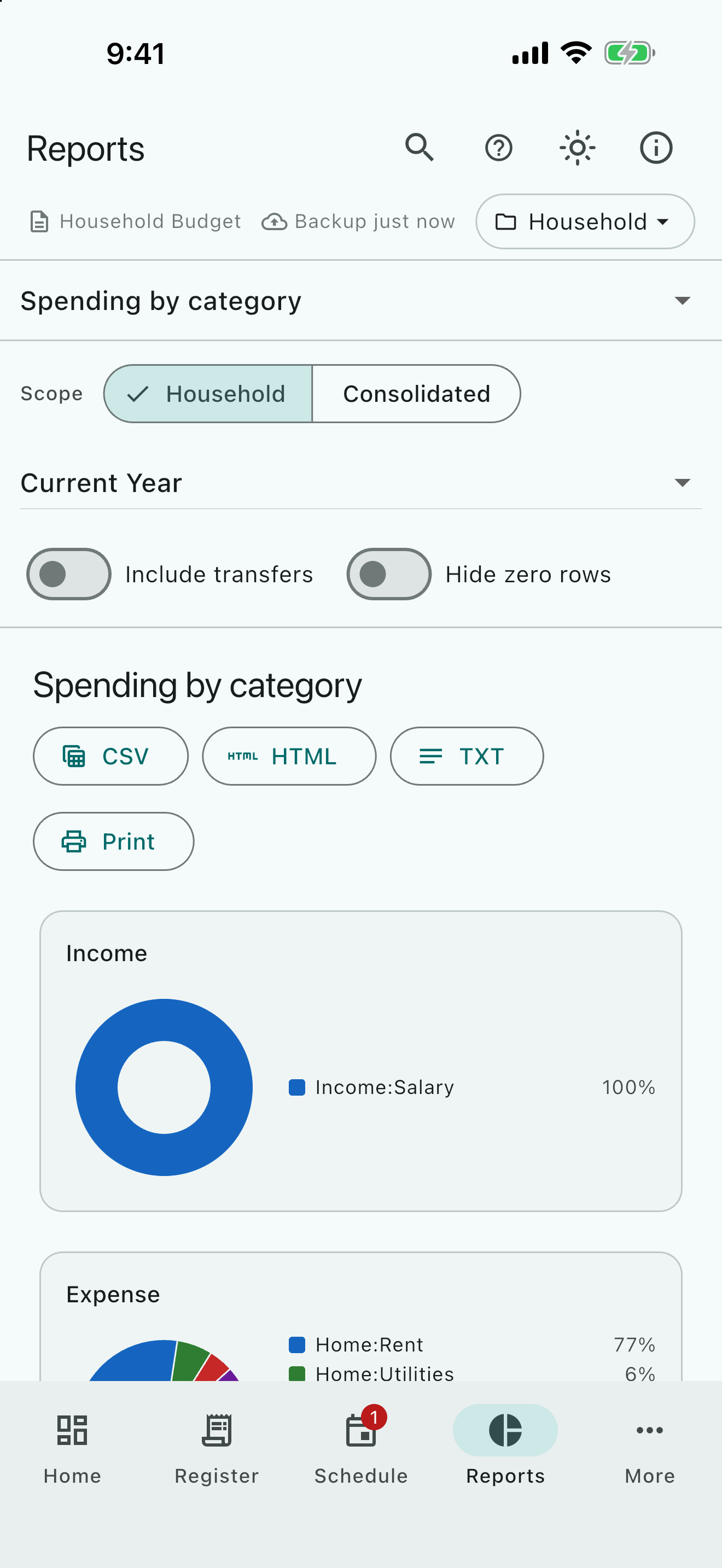
| CATEGORY | Spending by category | Income, expense and net for each main category, with its subcategories added in (the default report) | two pies: Income and Expense |
| CATEGORY | Spending by subcategory | The same figures with every category and subcategory on its own row, and a Subtotal after each main category that has more than one row | two pies: Income and Expense |
| CATEGORY | Category by month | One column per month, then Average and Total, for each main category | bar chart of monthly totals |
| CATEGORY | Subcategory by month | The same with every category and subcategory on its own row, and a Subtotal after each main category that has more than one row | bar chart of monthly totals |
| PAYEE | Spending by payee | Income, expense and net per payee, with one (Unassigned) row for transactions with no payee, with a payee the document does not know, and for transfers | pie Expense by payee |
| PAYEE | Payee by month | One column per month, then Average and Total, for each payee; a split transaction counts whole under its payee, and the same (Unassigned) row holds the rest | bar chart of monthly totals |
| BUDGET | Budget by category | For each main category: what you spent (actual), what you budgeted, the difference and the percent, for the period | none |
| BUDGET | Budget by subcategory | The same with every category on its own row, and a Subtotal after each main category that has more than one row | none |
| INVESTMENT REPORTS | Performance by investments | One row for each investment with its Symbol, Current price, Count, purchases, sales, Dividends, capital gains, Cost, Income, Gain, Gain, % and (from version 1.2) Annual return, %, with a Total row | none |
| INVESTMENT REPORTS | Realised gains (from version 1.2) | One row for each lot a sale took shares from: the sale date, the investment, the account, the day the lot was acquired, the Shares, Proceeds, Cost basis, Gain, the Term (short or long), the Days held and the Method, with a Subtotal for each term and a Total | none |
You can also jump straight to a report from search: type its name and choose the result marked Report.
Choose a period
The dropdown in the filter bar starts on Current Year (on Current Month in Budget by category and Budget by subcategory, and on today to the end of the third month in Forecast, the same stretch as Home’s Projected cash flow) until you choose a period; a period you choose stays when you switch reports. The choices are Today, Current Week, Previous Week, Current Month, Previous Month, Last 30 Days, Current Quarter, Previous Quarter, Current Year, Previous Year, Month To Date, Quarter To Date, Year To Date, All To Date, All Dates, Last 12 Months, Current Fiscal Year and Previous Fiscal Year. For a first and a last day of your own, open Filters (the icon beside the period) and choose Set dates; the bar then shows your range. Current Fiscal Year and Previous Fiscal Year run from the day you set under Settings ▸ Document ▸ First day of the fiscal year (1 January until you choose one). Last 12 Months is the twelve months that end today. In Category by month, Subcategory by month and Payee by month the Average column is each row’s Total divided by the months of the period: 12 for Last 12 Months, Current Year, Previous Year and the fiscal years, 3 for a quarter, 2 for Last 30 Days, 1 for a month or a week. For dates you set yourself, for All Dates and for the “To Date” periods it is the number of calendar months the dates touch. The Average of the Total row is the sum of the rows’ Averages.
Filter a report
The Filters icon beside the period opens a panel. Set dates takes a first and a last day. Accounts, Categories, Payees and Tags each open a list: tick what you want, or use Select all and Clear all, then Done; nothing ticked means no filter. Ticking a category ticks the subcategories under it. Text keeps the transactions whose comment, the comment of one of their split lines, or check number contains the text, whatever the case. Include closed accounts is on by default. A number on the icon shows how many filters are on. Every report applies all of these filters, Account balances too (it lists only the accounts you ticked in Accounts, or the accounts a matching transaction touches, and leaves investment holdings out of the balances while a category, payee, tag or text filter is on). The Forecast applies only Accounts and Include closed accounts.
Cash flow’s running total
In Cash flow the Total row’s last figure and the running total in the table start from the balance of your accounts on the day before the period, not from zero: it is your cash balance as it moves through the period. It counts the accounts the Accounts filter and Include closed accounts let through, in your base currency, and leaves out investment holdings. Last 30 days transactions keeps its running Total from 0, and AceMoney Classic starts its Cash flow total at the accounts’ opening balances only, so a period that does not begin at the start of your history can differ from a Classic printout.
Try a what-if scenario in the Forecast
From version 1.2, the Forecast can show what a change would do to your balances, without changing anything in your document.
- Open Forecast under GENERAL.
- Select Scenarios… above the report. The What-if scenarios list opens.
- Choose New scenario, give it a Scenario name, and choose Add a change.
- Under What is it, pick A payment or an income (then Money out or Money in, the Account, the Amount, Starts on, how it Repeats and, if you like, Ends on (optional)), or Skip a scheduled item (then the Scheduled item).
- Back on the report, pick the scenario in Scenario. None (the base forecast) turns it off.
With a scenario chosen, a table titled Total balance with this scenario and without it shows, for each month’s end, the Base figure, the figure With scenario and the Difference. A scenario changes the forecast only: it never adds a transaction or changes a schedule. Scenarios are kept in the document; the report opens on the base forecast each time.
Include transfers and hide empty rows
Up to three switches sit next to the period:
- Include transfers is off by default, so money moved between your own accounts does not count as spending or income. Turn it on when you want to see transfers in the Transactions report or in the month-by-month reports. In Category by month and Subcategory by month a transfer then counts under its category (under (Unassigned) when it has none): as an expense of the account it leaves and an income of the account it goes to, for the accounts the report covers, so with every account in the two cancel. When the two accounts use different currencies, the receiving account is credited with the amount that arrived, not the amount that left. With the switch off, a split whose lines are all transfers is left out as well; a split that mixes transfer lines and ordinary lines stays. Account balances is the exception: there it starts on, so a transfer moves both accounts, as it does in the Register; turn it off and plain transfers stop counting in either account. The Forecast has no such switch.
- Hide zero rows drops a row that holds nothing: in the spending reports a category or payee with no income and no expense, in the month-by-month reports a row whose total is zero, in Account balances an account with a zero balance, and in the budget reports a row with no actual, and in Cash flow a period whose net is zero. The Total row still counts every row.
- Show subtotals is on by default in Spending by subcategory, Subcategory by month and Budget by subcategory. It adds a Subtotal row after each main category that has two or more rows; a main category with one row has none. It is also on by default in Account balances, where it adds a subtotal for each account group. Turn it off to see the plain list.
Drill from a row into its transactions
Tap a row of Spending by category, Spending by subcategory, Category by month, Subcategory by month, Spending by payee, Payee by month, Budget by category, Budget by subcategory or Account balances to see the transactions behind it.
- Open one of those reports, for example Spending by category.
- Tap a row. Studio switches to the Transactions report with a filter for that row, over the same period:
- a category row filters on that category and the subcategories under it (in Spending by subcategory and Subcategory by month, on that one category; in Budget by subcategory, on every category with that name);
- a payee row filters on that payee;
- an Account balances row filters on that account. A row in a month-by-month report opens the whole row, not one month.
- The filter now stays on, and it narrows every report you open afterwards, not only Transactions. Drilling into another row replaces that one filter; your other filters stay. A number on the Filters icon shows that a filter is on. To see the full picture again, open Filters, choose Clear all under the list and then Done.
The Performance by investments report has no drill-down. The Subtotal rows, the Total row and the (Unassigned) row (the transactions with no category or no payee, and transfers) open nothing.
You can also start from the lists: on the Payees page select Show transactions on a payee’s row, and on the Categories page select Show transactions on a category’s row (it includes the subcategories under it). Studio opens Reports on Transactions for that payee or category over All Dates, and replaces whatever filters the Reports page held.
The Transactions report ends with a Total row: the Withdrawal sum and the Deposit sum of the rows shown. After a drill from Spending by category it equals that category’s Expense in the category report. When the accounts use different currencies the two sums are in your base currency and read (converted); with no rows there is no Total row.
Report across every portfolio
In a document with more than one portfolio, a Scope control appears above the filter bar with two choices: the name of the active portfolio, and Consolidated. Consolidated adds every portfolio together using the shared categories. The control is hidden when the document has a single portfolio.
Performance by investments
Choose Performance by investments under INVESTMENT REPORTS. It has one row for each investment that has a transaction in the period and the accounts you let through, sorted by name, and a Total row under them. The columns are Investment, Symbol, Current price, Count, Purchase value, Purchase Commissions, Sale value, Sale Commissions, Dividends, S-Term Cap Gain, L-Term Cap Gain, Cost, Income, Gain and Gain, %; from version 1.2 a last column, Annual return, %, follows. Numbers show four decimals, with no currency sign (the Annual return, % shows two).
- Cost is Purchase value plus Purchase Commissions. Income is Sale value less Sale Commissions, plus Dividends and the two capital gains. Gain is Income less Cost, plus the Count at the Current price, less what was reinvested. Gain, % is Gain as a percent of Cost, and is empty when the Cost is 0.
- The Current price is the latest price on file, whatever the period. An investment with no price on file counts as price 0.
- From version 1.2, Annual return, % is the yearly rate that makes the money you put in and took out, each on its own day, equal what the shares were worth at the end (what a spreadsheet’s XIRR gives). It counts the buys, sells, dividends and capital gains of the period, the shares you already held at the start of the period at the last price on or before the day before it, and the shares you hold at the end at the last price on or before the end of the period. On All Dates it runs from the first transaction to today. It reads n/a when no rate can be worked out: a position with no price on or before the day it needs, only money going in, or everything on one day. The Total row uses every row’s money together; with rows in more than one currency it uses your stored rates, and reads n/a if there are none.
- It opens on All Dates. Only the period, Accounts and Include closed accounts change it; the Include transfers, Hide zero rows and Show subtotals switches are not shown, and the other filters in the panel do nothing here. A row does not open anything when you tap it.
- Each row is in its investment’s own currency. When the rows use more than one currency, each is converted to your base currency for the Total, and the ≈ sign beside the title shows when a currency had no downloaded rate.
- When a period is chosen and nothing falls in it, the page says No data for this period. On All Dates an empty report shows only the column headings.
- CSV, HTML, TXT and print work as on the other reports.
These are the paid reports. Without an AceMoney Studio license the names still show in the catalog, and opening either shows Investments is part of AceMoney Studio with an Unlock AceMoney Studio button, the same panel as the Portfolio page. If the document holds the sample accounts, the report shows those only, read-only, under the banner “Investments shows the sample accounts only, read-only. Unlock AceMoney Studio to use it with your own accounts.” Your own investment data is never changed: it is all there the moment you unlock.
Realised gains
From version 1.2. Choose Realised gains under INVESTMENT REPORTS. It lists the sales of the period lot by lot. A sale that takes shares from two lots is two rows, each with the day that lot was Acquired, the Shares taken from it, the Proceeds (the sale price times the shares, less that part of the sale’s commission), the Cost basis of those shares, the Gain, and the Term: Short term or Long term, with the Days held. A lot is long term when the sale is after the same calendar date one year later: a lot bought on 15 March 2026 and sold on 15 March 2027 is short term, and sold on 16 March 2027 is long term. A lot bought on 29 February has no such date in a year without one, so its anniversary is 28 February and it is long term from 1 March. The Method column says how the account costs its shares, and the Note column says Lots not chosen: first in, first out on a row whose shares the sale did not name on an account that sells by specific lots.
- It opens on the current year, and the period picks sales by the day of the sale; the lots they take can have been bought years earlier. Only the period, Accounts and Include closed accounts change it.
- Each account runs by its own method (First in, first out, Average cost or Specific lots, chosen as the account’s Cost basis method; see Investments and quotes). Under Average cost a sale is one row at the average, with no single acquired day, so it has no term; its Subtotal is Average cost total.
- A Subtotal row appears for each term that has rows (Short term total, Long term total, Average cost total), then the Total. With rows in more than one currency the subtotals and the Total are in your base currency.
- A Remove is not a sale and is not listed. A sale of more shares than you held is listed only for the shares you did hold. A lot added with Add has no cost, and its date is the day of the Add.
- CSV writes ISO dates and plain numbers, so a spreadsheet reads it back; HTML, TXT and print follow your Date and Number formats.
Save a favorite report
To keep a report with its period and filters, open it the way you want it and choose the star (Add to favorites…) in its title row, or press Ctrl+D (Cmd+D on macOS) while Reports is showing. The Add report to favorites dialog asks for a Report name; choose OK. An empty name is refused with “Report name cannot be empty!”. If the name is already used, Studio asks “There already is an existing report with the same name. Overwrite it?” and Yes replaces that favorite.
- The favorites are listed under FAVORITE REPORTS, above the groups in the catalog, in the order you added them. Choose one to open that report with its saved period and filters. On a narrow window the catalog is a drop-down and the favorites are in a star menu beside it.
- Organize… under the list opens Organize reports with View, Rename, Delete and Close. Rename asks for a Report Name. Delete acts at once, without a question.
- A favorite keeps the report, its period and its filters (accounts, categories, payees, tags, text, Include transfers, Include closed accounts, Show subtotals, Hide zero rows). It does not keep the Scope or the sort. A filter on an account, category, payee or tag you have deleted since is left out when you open it.
- Favorites belong to the document and stay on this computer: they are not part of sync, but a copy of the file carries them. Favorites saved before Include transfers was a setting of the report open with the report’s own choice; a favorite saved with it on keeps it on, so a month-by-month favorite saved with it on now shows transfers.
- Importing a Classic file turns its favorite reports into Studio favorites; see Import your data.
Read the charts
Charts sit between the report title and the table. Spending by category and Spending by subcategory draw an Income pie and an Expense pie; Spending by payee draws Expense by payee; Cash flow, Last 30 days transactions and the month-by-month reports draw bars per period; Account balances, Forecast, Transactions, Performance by investments and the two budget reports have no chart. When nothing falls in the chosen period the page says No data for this period.
Export a report
Every report has CSV, HTML and TXT buttons in its title row (a locked investment report shows none). CSV opens in any spreadsheet; HTML is a simple table for a browser or an e-mail; TXT is tab-separated text. HTML, TXT and the print show dates the way the report shows them, in your Date format; CSV keeps its dates in one plain form that does not change with the setting. The suggested file name is the report title.
macOS
Choose a format, pick a folder in the save dialog, and the message Saved to followed by the path confirms it. File ▸ Export… ▸ Report… brings you to the same buttons.
Windows
Same as macOS: the save dialog opens and Saved to confirms the file.
Linux
Same as macOS and Windows.
iOS (iPhone and iPad)
From version 1.2. Choose a format and the share sheet opens. Pick Save to Files, a cloud drive, Mail or any other app; the message Shared confirms it. Closing the sheet without picking anything leaves nothing behind.
Android
Same as iOS: the share sheet opens with your installed apps and drives, then Shared confirms it.
Print a report or save it as PDF
- Choose Print in the report’s title row.
- The system print dialog opens with a paginated copy of the report. Every desktop print dialog also offers Save as PDF (the wording varies by operating system), which is how you keep a PDF of a report.
On desktop, ⌘P (macOS) or Ctrl+P (Windows and Linux) prints the report on screen, and File ▸ Print… ▸ Report… leads to the same page. On iOS and Android (from version 1.2) the print button hands the report to the system print sheet.
Reports with more than one currency
Performance by investments keeps each row in its own currency and converts only its Total. Account balances adds every account into your base currency. From version 1.2, a report that adds up accounts in more than one currency says so under its title: “Amounts in other currencies are converted at today’s exchange rate, whatever the date of the transaction.” Its Total reads (converted) when a downloaded rate was used, and Mixed currencies when no base currency is set. A small ≈ sign next to a total means a currency had no downloaded rate and was counted 1:1; see Currencies to download rates. From version 1.2, when a rate you typed by hand hides a downloaded one, Use this rate on the downloaded rate in Settings ▸ Currency & Quotes removes the typed rates of that currency so the downloaded one is used.
iOS (iPhone and iPad)
From version 1.2, the first release of AceMoney Studio for phones and tablets. Reports read your whole transaction history, not the last 90 days the phone register shows, so a banner at the top says the page needs the full history and may take a moment. Nothing leaves the device. The catalog and filter bar are tight on a phone; an iPad or landscape orientation gives the tables room.
Android
Same as iOS: the full-history banner appears and the page reads everything on the device.
Common questions
Are any reports part of the paid version?
Only the investment reports. Every other report in the catalog is free, with its charts, export, print and favorites, over all of your accounts, including accounts that are read-only because they are past the free 3. The exceptions are the investment reports, Performance by investments and (from version 1.2) Realised gains: you can see their names in the catalog, but opening one shows Investments is part of AceMoney Studio until you unlock, the same as the Portfolio page. Mileage’s own Reports tab, inside the Mileage page, is a different page and stays free. What else the license adds is listed on The free version and the AceMoney Studio license.
Why does the Transactions report not show my transfers?
Include transfers is off by default, except in Account balances. Turn it on in the filter bar.
Can I choose my own start and end date?
Yes. Open Filters (the icon beside the period), choose Set dates, and pick a first and a last day; the reports that show a period then cover exactly that range (Account balances shows each balance as of the end of the period and has no start date; the line Balances as of … under the title says which day). The Register’s own Filters offer fixed ranges only.
How do I clear the category filter after a drill-down?
The filter that a drill-down from Spending by category sets stays on for every report until you turn it off. Open Filters ▸ Categories, choose Clear all and then Done; or drill into a different category to change it.
Can I change the fiscal year start?
Yes. Open Settings ▸ Document, find First day of the fiscal year and choose a month and a day (February offers up to the 28th). Current Fiscal Year and Previous Fiscal Year in Reports then run from that day; until you choose, they run from 1 January, the same as the calendar year. The choice belongs to the open document and is not synced. Importing an AceMoney Classic file brings Classic’s own first day, unless the document already has one.
Is there a net-worth report?
Account balances shows every account’s balance as of the end of the period you choose (the line Balances as of … says which day), and the Home page draws Net worth — last 12 months as a line chart.
Can I save a favorite report or a report layout?
Yes, as a favorite: see Save a favorite report. The page itself opens on Spending by category for Current Year until you open a favorite or choose another report. Exported files are the other way to keep a copy.
Does a report cover every portfolio?
Only the active portfolio unless you choose Consolidated in the Scope control, which appears once the document has two or more portfolios.
Troubleshooting
“No data for this period.” Nothing in the active portfolio falls in the chosen period. (Performance by investments on All Dates shows only its headings.) Pick a wider period such as All Dates, switch the Scope to Consolidated, or check that the transactions are in this portfolio.
A report shows only one category, or looks incomplete, after a drill-down. The drill-down filter stays on for every report; a number on the Filters icon shows it. Open Filters ▸ Categories, choose Clear all and then Done to see everything again.
A pie chart is missing a slice or shows nothing. Categories with nothing in the period are not drawn; a report with only income shows only the Income pie. Choose a wider period.
“Couldn’t export. Choose another place and try again.” The file could not be written where you chose. Pick another folder (desktop) or another app in the share sheet (mobile) and try again.
The total shows a ≈ sign. One of your currencies has no downloaded rate and was counted 1:1. Open Settings ▸ Currency & Quotes and choose Update exchange rates.
The print sheet does not open on my phone. Export the report as HTML or CSV instead and open it in another app, or print from a desktop copy of the document.
Reports take a moment on the phone. The page reads the whole history every time it opens; a long history with thousands of transactions can take a few seconds. Nothing is uploaded.