
AceMoney Studio
Enter transactions in the register
The Register holds the transactions of one account, with a running balance that is always the true, date-ordered balance. This page covers the layout, adding and changing transactions, the row menu, statuses, columns, search, and print or export.
Before you begin
You need at least one account. If the register says No accounts yet — add one in the Accounts section., add one first: Add and manage accounts.
The layout
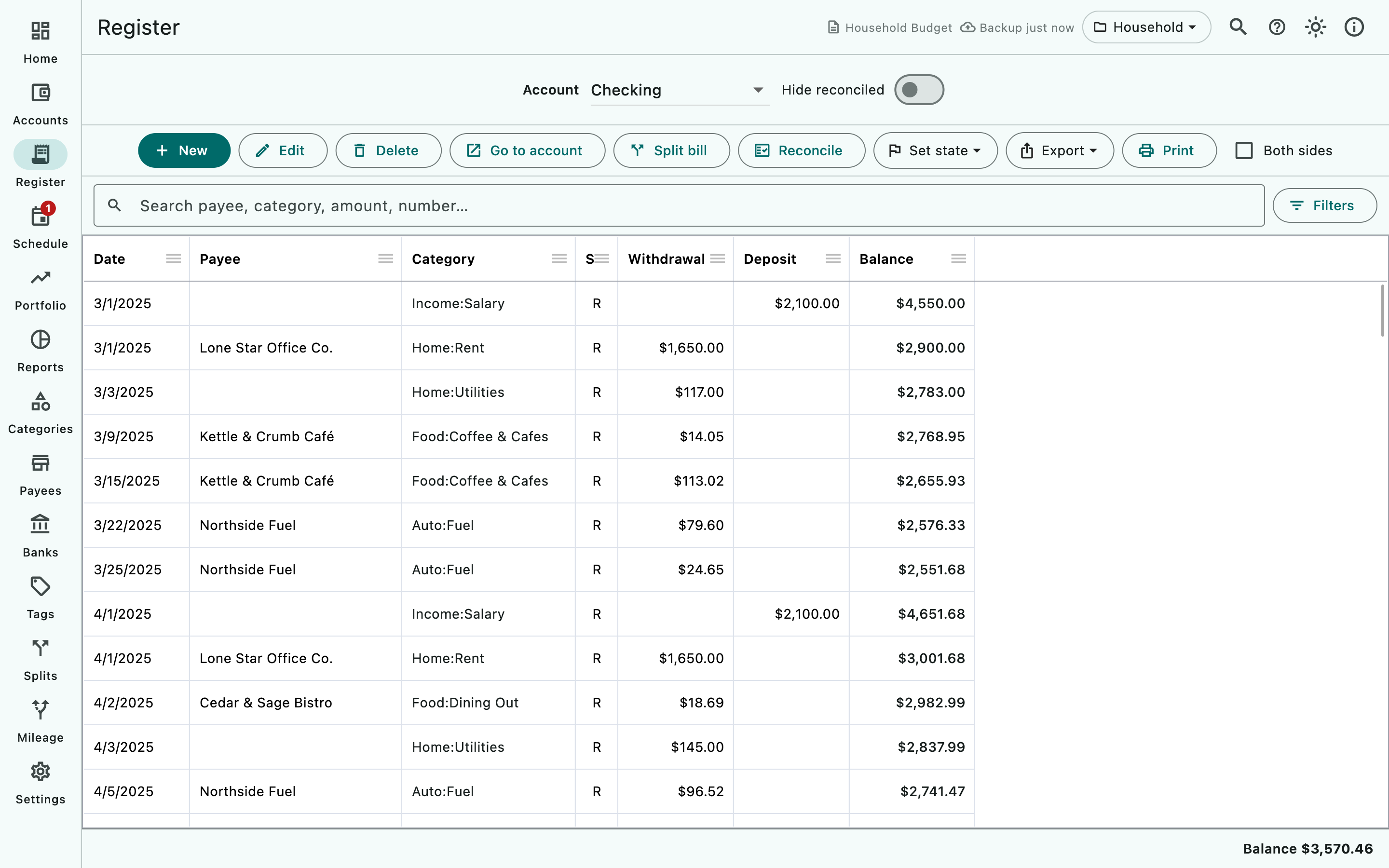
- Select Register in the navigation rail. On a computer, ⌘F (macOS) or Ctrl+F (Windows, Linux) opens it with the cursor in the search box.
- At the top, the Account picker chooses the account, and the Hide reconciled switch hides settled rows.
- The toolbar holds New, Edit, Duplicate, Add to schedule…, Delete, Go to account, Split bill (share a cost with friends; see Bill splitting), Reconcile, the Set status menu, the Export menu, Columns, Print and the Both sides checkbox. On a narrow window it wraps so every button stays reachable.
- Below it, the search box (Search payee, category, amount, number…) and the Filters button.
- The grid shows Date, Payee, Category, a paperclip for rows with an attachment, St (the status), Withdrawal, Deposit, Balance, Comment and Tags. Number is hidden until you show it (see Choose the columns). A row takes the color of its first tag that has a readable color.
- The bottom bar shows the account’s Balance. Hover over it (or long-press) to see how much is Reconciled, Cleared, Uncleared and Imported.
At the Compact display size (Settings ▸ Appearance ▸ Display size) the toolbar is one line: New, Edit, Delete, Reconcile and Set status, plus a ⋮ button (More actions) that holds Duplicate, Add to schedule…, Go to account, Split bill, Export, Columns, Print and Both sides.
Choose the account
Pick an account in the Account list. Choosing a transaction on the Home page or in the global search also opens its account here, as does ⌘1 to ⌘0 on a computer (Ctrl on Windows and Linux).
Add a transaction
- Select New (or press Insert on a computer while a row is selected).
- Select the date button to change the date; it defaults to today.
- Choose Withdrawal, Deposit or Transfer (for transfers see Transfers and split transactions).
- Enter the Amount as a positive number; the type decides the direction.
- Type the Payee: pick from the suggestions or type a new name, which is created when you save. Picking a payee that has a default category fills in Category (Payees, tags and banks).
- Type or pick the Category. Type
Parent:Childto create a subcategory on the spot, or tick Split into categories to divide the amount. - Optionally change the Number (Studio fills in the next number for the account, useful for checks), the Status, and add a Comment (up to 500 characters).
- Optionally select Tags chips, and use Attach file to add a receipt (see Attach a receipt or a file).
- Select Add.
To enter a transaction like an existing one, select the row and choose Duplicate (⌘D / Ctrl+D). The New transaction dialog opens filled in from the row, dated today, Uncleared, with the next number and no attachments; select Add to save it. Add to schedule… instead opens a new monthly scheduled transaction filled in from the row (Scheduled transactions).
Edit a transaction in place
On a computer, double-click a cell to change it right in the grid:
- Date opens the date picker.
- St offers Uncleared, Cleared and Reconciled.
- Payee and Category suggest names as you type.
- Withdrawal, Deposit, Number and Comment take the text you type.
Press Enter or Tab, or click elsewhere, to save; press Esc to cancel. If the value is not accepted, the cell stays open and says why.
Some cells open the Edit transaction dialog instead: Balance, Tags and the paperclip; the payee and amounts of a transfer; the category and amount of a split transaction; and the status of an Imported row.
To open the whole transaction, select the row and choose Edit, or press Enter. Change what you need in Edit transaction and select Save.
From version 1.2, you can make a double-click always open the transaction: turn on Double-click opens the transaction in Settings ▸ Appearance, under Register. It is off by default and is set on each computer separately.
A Transfer from … row that belongs to a split in another account cannot be edited or deleted here; select Go to account to open the split where it lives (see Troubleshooting). You can set its status here, and Hide reconciled follows it.
Use the row menu
Right-click a row (or press the menu key or Shift+F10) to open its menu. For one row it starts with Edit, Duplicate, Add to schedule… and, on a transfer, Go to account. Every row menu then has:
- Copy and Paste (⌘C / ⌘V, or Ctrl+C / Ctrl+V): copy transactions, then paste copies into this account or another one.
- Delete.
- Status and Tags, to set either on all the selected rows.
- Change category… and Change payee…, for all the selected rows at once (not for a single split transaction or transfer row). Leave the name empty to clear it.
- Move to account (when another account you can edit is in the portfolio): moves the selected rows to another account of the same portfolio. Only the account changes.
- New transaction….
To select several rows, Shift-click a range; on Windows and Linux, Ctrl-click adds or removes one row. A line above the bottom bar shows N selected and their net sum. When some rows cannot take an action (for example a split transaction and Change category…), the others are changed and a message says how many were left and why.
From version 1.2, Studio can learn your categories. After you give an imported transaction a new category, a message asks Always use {category} for {payee}? (with the real names). Choose Always to keep the rule; Rule saved: {payee} → {category} confirms it and offers Undo. A row that matches a rule has Rule for {payee}… in its menu. It opens the Rules list, which is also on the Categories page, where you can delete a rule.
Delete a transaction and undo
Select the row and select Delete (or press Delete on a computer). The transaction moves to the trash at once, and Transaction moved to trash offers Undo for a few seconds (⌘Z / Ctrl+Z on a computer). When you delete several rows and some of them are Reconciled or Cleared, Studio asks first.
Set a transaction’s status
Every transaction has a status, shown in the St column:
- Uncleared (blank): the bank has not shown it yet.
- Cleared (C): it appears on your bank’s website or app.
- Reconciled (R): matched against a statement in the guided Reconcile flow.
- Imported (I): it arrived through an import or a bank feed and is not reviewed yet.
To change it, select the rows, open Set status and choose Uncleared, Cleared or Reconciled. You can also double-click the St cell, use Status in the row menu, or set Status in the transaction dialog. On a computer, press C, R or U while a row is selected. If several selected rows would stop being Reconciled, Studio asks first. For a transfer, Set status changes the side you are looking at; tick Both sides first to change both ends.
Hide reconciled rows
Turn on Hide reconciled to hide the current account’s reconciled rows. The running balance restarts from the reconciled balance, and the bottom Balance is unchanged. The switch is per account and is off again the next time you open the app.
Search and filter
Type in the search box to keep only matching rows. Search looks at the payee, category (including split lines), comment, number and tag names; a plain number matches an exact amount, deposit or withdrawal.
For structured filters, select Filters: choose a Type (Any, Deposits, Withdrawals, Transfers), a Date range (Any time, This month, Last month, Last 30 days, This year, Last 12 months), an Amount (absolute) range, one or more Status values (Uncleared, Cleared, Reconciled, Imported) or the switch Unreconciled only, and any Categories, Payees and Tags; then select Apply. Clear all removes every filter.
Active filters appear as removable chips above the grid, such as This month or Category: Groceries; the ✕ next to Filters clears everything. While anything is active a line reads Showing N of M with the net of the matching rows, and the bottom bar says Full account (filter not applied). No match shows No transactions match the filter.
To search every account at once, use the global search (⌘K / Ctrl+K; see Search).
Choose the columns
Select Columns in the toolbar. Tick or untick Date, Payee, Category, St, Withdrawal, Deposit, Balance, Comment, Number and Tags; the menu stays open so you can change several. Fit columns to window stretches or shrinks the columns to the register’s width. Reset columns goes back to the defaults. Your choices are saved in the document. The menu of a column header offers the same list under Set columns, plus Auto fit, freezing and Hide column.
Sort the register
Click a column header to sort by that column, and again to reverse the order. Studio remembers your choice in the document. A new register is sorted by Date, oldest first, and opens at the newest transactions at the bottom. St puts Reconciled first, then Cleared, Imported and the rest. Balance stays the running total in date order whatever you sort by. At phone width the register stays in date order.
See upcoming bills in the register
Settings ▸ Document ▸ Display future bills for lists your scheduled transactions below the real ones, as far ahead as you choose. It is None until you choose. A bill row has not happened yet: right-click it for Enter into register or Skip, and change the schedule itself on the Schedule page.
Attach a receipt or a file
- In the transaction dialog, select Attach file under Attachments.
- Pick an image or a PDF (JPG, JPEG, PNG, GIF, WebP or PDF). New files show (new) until you save.
- Select Add or Save. The files are copied into an attachments folder that belongs to your document; cancelling the dialog discards them.
Later, open the transaction to see a thumbnail or a PDF icon, and use Open to view or Remove to detach the file. Attached files are stored next to the document, travel with Save a Copy As…, and are not covered by a document password (Document password).
Print or export the register
- Print opens your system’s print dialog; every desktop print dialog also offers Save as PDF.
- Export offers CSV, TXT, HTML and QIF; CSV and QIF can be imported back into Studio (Export and print).
- On a computer you choose where to save; Saved to … confirms.
Platform differences
macOS
With a row selected: Insert new, Delete delete, Enter edit, ⌘D duplicate, C / R / U set the status, 1 to 9 toggle tags, 0 clears them; ⌘B reconciles, ⌘P prints (Keyboard shortcuts).
Windows
As on macOS, with Ctrl in place of ⌘.
Linux
As on Windows.
iOS (iPhone and iPad)
From version 1.2, the first release of AceMoney Studio for phones and tablets. Tap a row to edit it; press and hold a row for its menu. The register lists the last 90 days of transactions; the running balance and the bottom Balance stay exact for the whole account. To see older transactions, open Reports and choose Transactions with All Dates. Export uses the share sheet.
Android
As on iOS. Attach file opens the system file picker for images and PDFs.
Common questions
Can I sort the register by payee or amount?
Yes, on a computer or a wide tablet: click a column header, and again to reverse the order. Balance stays the running total in date order.
What is the difference between Cleared and Reconciled?
Cleared means you have seen the transaction at the bank. Reconciled means it was matched to a statement in the guided flow. Reconciling pre-ticks every cleared row, so marking rows Cleared as you go makes the statement check faster (Reconcile an account).
How do I move transactions to another account?
Select them, right-click and choose Move to account, then the account. Only the account changes. Transactions move only between accounts of the same portfolio.
Can Studio print checks or pay bills for me?
No. Studio records and schedules payments but does not print checks and never sends money anywhere. Pay through your bank and enter the transaction, keeping the check number in Number.
Troubleshooting
“Select a row first.” Edit, Delete, Set status and Split bill act on the selected row. Click or tap a row, then try again.
“Select a transfer row first.” Go to account only works on a transfer, which reads Transfer to … or Transfer from … in the Payee column.
“This is a split-transfer from … — edit it there (Go to account).” The row belongs to a split in another account. Select Go to account and edit the split there (Transfers and split transactions).
A double-click opens the dialog instead of editing the cell. That cell is not edited in place (see Edit a transaction in place), or Double-click opens the transaction is on in Settings ▸ Appearance.
“Duplicate check number”. The number is already used in this account. Choose Yes to keep it or No to change it. To stop the warning, turn off Show duplicate check number warning in Settings ▸ Document.
“No transactions match the filter.” but the balance is right. A search or filter is active; select the ✕ next to Filters.