
AceMoney Studio
Read the Home dashboard
Home is the first page in the navigation rail and the one AceMoney Studio opens on. It is a single scrolling column of cards that update live as you enter transactions, always for the portfolio you have open. You choose which cards show and in what order with Customize Home (see below). No card is locked in the free version; the Goals card holds one goal there.
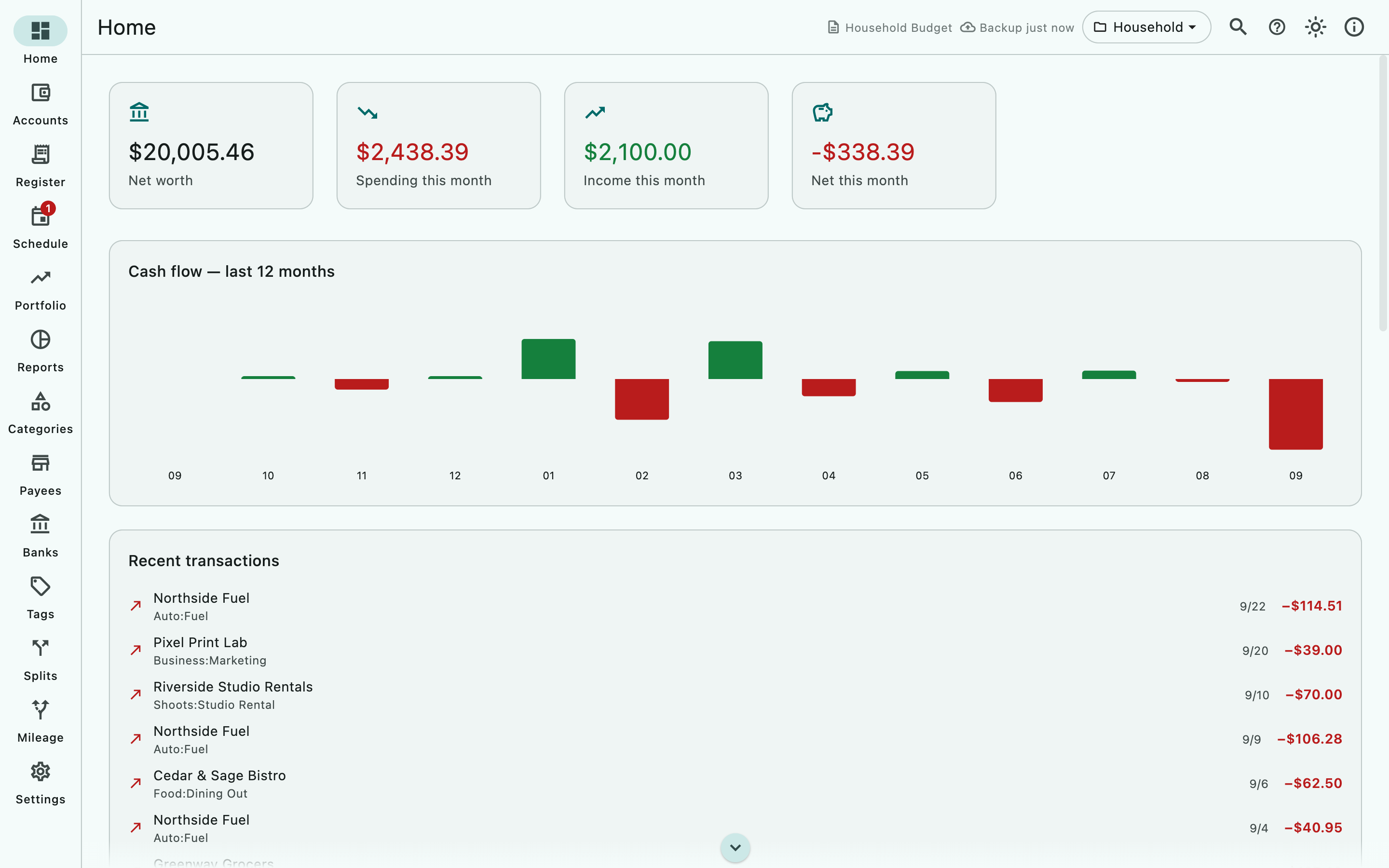
The four figures at the top
- Net worth is the balance of every account in the portfolio, added together: each account’s opening balance plus all its transactions. For an investment account it is the cash plus the value of its holdings at the latest price, as long as Add investment value to account balances is on in Settings ▸ Currency & Quotes (it is on by default). It is not a sum of opening balances. When accounts use different currencies the figure is converted into your base currency and a caption says Converted to followed by the currency code, or Mixed currencies, converted. Until the base currency loads, the card reads Mixed currencies. See Currencies.
- Spending this month and Income this month add up this calendar month’s withdrawals and deposits; transfers between your own accounts are not counted.
- Net this month is income minus spending, shown in red when negative.
Show, hide and reorder the cards
- On Home, choose the Customize Home button (the sliders icon at the top right).
- Tick a card to show it, or clear its box to hide it. Summary is the four figures at the top, kept together.
- Move a card with Move up or Move down, or drag it by its handle.
- Choose Close. Every change applies at once.
Reset to default brings back the original order and the original set of cards. It is greyed out while Home is already as it was. Your choice is saved in the document, so each document keeps its own layout. It is not part of what AceMoney Cloud syncs.
Accounts
The Accounts card lists your accounts in the same groups and order as the Accounts page, with each account’s balance and a Total at the foot; select its title to open the Accounts page. Select a row to open that account in the Register. An account that has an account number shows it masked under the name, for example ••••7890; Home never shows the whole number (the Accounts page has the eye icon for that). With the Available balance chip on the Accounts page, an account that has a balance limit also shows available … under its number. The card follows that page’s grouping, Show closed accounts and Hide zero balances choices.
Safe to spend
From version 1.2. The Safe to spend card shows how much money you can spend until your next scheduled income, for example Until your next income on a date. Studio takes the balance today of your spending accounts and subtracts what is due to leave them before that income: scheduled payments on the days they fall due, and transactions you have already entered with a later date. Nothing is guessed. The card is shown by default; hide it with Customize Home if you do not want it.
- How this is worked out lists every part of the figure: the balance today, the next income, the total due before it and each payment counted. Money moved between your own spending accounts is not counted.
- Choose accounts picks the Spending accounts. Until you choose, your open checking and cash accounts count. Use the default goes back to that.
- With no scheduled deposit to measure against, the card says No scheduled income to measure against. Schedule a deposit and the figure appears here.
- With no spending account at all, it says No spending accounts are chosen.
The figure is in your base currency. It is shown in red when what is due is more than what is there.
Cash flow — last 12 months
A bar chart of net money in or out for each month of the twelve months that end today; unless today is the last day of a month, the first bar covers only the part of its month that falls inside them. It reads No activity yet until a month has a transaction.
Recent transactions
The eight most recent transactions in the portfolio: payee (or Transfer), category, date and signed amount. It reads No transactions yet until you add one. To work on a transaction, open the Register.
Net worth — last 12 months
A line chart of your net worth in your base currency at the end of each month of the twelve months that end today (the last point is today).
Goals
The Goals card lists up to three of your savings or debt-payoff goals with a percentage and a progress bar (green at 100%), then +N more if you have others. Choose the + icon (Add goal) or tap the card to open the Goals page; when you have none it says Set a savings or debt-payoff goal linked to an account. The free version includes one goal; see Goals.
Budget goals
This card is free. You set the budgets themselves in Categories and budgets.
The card shows up to six gauges and six bars, one for each main category that has a budget, from A to Z; a main category counts the budgets and the spending of its subcategories. Each reads spent over budget for the current period of that budget (this week for a weekly budget, this month for a monthly one), in red and bold when an expense is over; an income budget that is reached or passed never turns red. When every row renews in the same period the card is titled Budget goals — this month (or week, quarter or year); otherwise it is titled Budget goals and a budget that does not renew monthly carries a short suffix such as /wk. The card is hidden when no category has a budget.
Projected cash flow — next 3 months
A table with the columns Month, Income, Expense and Net, built only from your scheduled transactions; it is hidden when nothing is scheduled. Reports ▸ Forecast shows the same schedules line by line with each account’s running balance, and its month totals match this table.
Upcoming bills
The next five scheduled transactions due within 30 days, overdue ones included. Each row shows the payee (or —), the account, when it is due as Today, 3d ago or In 12d (due and overdue rows in red and bold) and the signed amount. It reads Nothing due in the next 30 days. when the schedule is clear. Post or edit them on the Schedule page.
Recurring charges
From version 1.2. The Recurring charges card is off by default. To show it, open Customize Home and tick Recurring charges. It lists the charges that repeat in your history but are not on your schedule yet, and the scheduled charges whose last payment went up, for example 1 scheduled charge went up. The three largest are listed, each with its next expected date or the price rise. Select the card’s title to open the Recurring charges page, where you can add a charge to the schedule. The same page opens from the Recurring charges icon on the Schedule page; see Scheduled transactions. When nothing repeats, the card says Nothing repeats in your history that isn’t already scheduled.
When Home is empty
A portfolio with no accounts shows Welcome to AceMoney Studio with two buttons: Import AceMoney data opens the import wizard for an AceMoney Classic export or a bank file, and Load sample data fills the document with a fictional set of accounts to explore. To start from scratch, open Accounts and choose Add account; there is no add-account button on Home itself.
macOS
Both buttons work; import is described in Import data.
Windows
Same as macOS.
Linux
Same as macOS.
iOS (iPhone and iPad)
AceMoney Studio Mobile is coming to iPhone and Android; these notes describe it from AceMoney Studio Mobile 1.2. Both buttons work. Import AceMoney data opens the file picker, where you pick the file in Files. See Import data.
Android
Both buttons work, from AceMoney Studio Mobile 1.2.
Home on a phone
From AceMoney Studio Mobile 1.2, on iOS and Android a banner at the top, shown the first time and then dismissed for good, says the page needs your full transaction history and may take a moment to load. The phone register lists only the last 90 days, but Home always reads every transaction so the figures are exact. Nothing leaves the device.
Common questions
Why is Net worth not the sum of my opening balances?
Because it is the sum of your current balances: each opening balance plus every transaction since. A credit card you owe money on has a negative balance and lowers net worth, which is the point of the figure.
Why does the Net worth card say “Mixed currencies”?
Your accounts use more than one currency and the base currency has not loaded yet. Once it loads, the card reads Converted to followed by your base currency.
Can I hide, reorder or add cards?
Yes. Choose Customize Home at the top right of Home to show or hide each card and to change their order; Reset to default undoes it all. You cannot add cards of your own. Separately, a card that has nothing to show (Budget goals with no budgets, Projected cash flow with no schedules) hides itself even when it is ticked.
Why does Safe to spend differ from my checking balance?
It is the balance minus what is already due before your next scheduled income. Choose How this is worked out on the card to see each payment it counted. If a payment is missing, it is not on your schedule or not dated ahead in the register.
Why does my investment account count more than its cash?
Net worth counts an investment account’s holdings at the latest price, plus its cash. To count cash only, turn off Add investment value to account balances in Settings ▸ Currency & Quotes.
Does Home add up every portfolio?
No. Every figure is for the portfolio in the top-bar switcher. To see all portfolios together, use Consolidated in Reports.
Where did the “Spending this month” transactions come from?
From every account in the active portfolio, for the current calendar month, transfers excluded. Open Reports ▸ Spending by category with the period Current Month for the breakdown.
Troubleshooting
A ≈ sign appears next to Net worth. A currency has no downloaded exchange rate and was counted 1:1. Choose Update exchange rates under Settings ▸ Currency & Quotes.
Budget goals is missing. No category in this portfolio has a budget amount. Set one with Edit on a category in Categories.
Projected cash flow is missing. There is nothing on the Schedule page. Add a recurring bill or paycheck and the table appears.
Upcoming bills says “Nothing due in the next 30 days.” but I have bills. Their next date is more than 30 days away, or they belong to another portfolio. Open Schedule to see every date.
A card I want is missing. It is hidden. Open Customize Home and tick it, or choose Reset to default. The Recurring charges card is hidden until you tick it.
Safe to spend says “No spending accounts are chosen.” None of your accounts is an open checking or cash account, and you have not chosen any. Choose Choose accounts and tick the accounts you spend from.
Home shows the welcome screen although I have accounts. You switched to a portfolio that has no accounts. Switch back with the portfolio control in the top bar.
Home takes a while to open on my phone. In AceMoney Studio Mobile (from version 1.2, not in the stores yet), Home reads the whole history each time. Long histories take a few seconds; nothing is being uploaded.