AceMoney Classic

AceMoney Classic help

Getting started, and answers to common questions. AceMoney Classic is no longer sold; your license keeps working.

Getting started

You don’t need to know accounting to manage your own money. This short introduction explains the few ideas AceMoney Classic is built on, then walks you through your first account and your first transactions.
An AceMoney Classic report chart

Accounts and transactions

A transaction is a record that changes your account balance. You’ve probably seen a lot of them in credit card statements: charges at the grocery store or department store, credit for returned goods, and bill payments. There are three major transaction types: a deposit (when you add money to the account), a withdrawal (when you spend money from the account) and a transfer (when you move money from one account to another). A transaction has an amount, a spending category and a payor or payee.

Amount is simple — it’s just a sum of money. Sometimes the amount is split, such as when part of your paycheck goes to taxes and the rest goes to you. It is still a single transaction, but it has several parts inside it, and AceMoney Classic handles those splits for you.

Category is a tag for planning and reporting. At the end of the month it’s interesting to know how much you’ve spent on toys for your kids (or electronic toys for yourself). When you plan your budget, you set limits by category. You can live without categories if all you want is a copy of your bank statement, but they give you a whole new level of control over your money — and a year’s summary by category can be a surprise. (You spent how much at the pub?!)

Payee is the person or company — a supermarket or a gas station, for example — that receives money from your account. A payor, such as an employer, is one who pays you. AceMoney Classic calls the other side of a transaction the payor/payee. At the end of the year you might want to know how much you spent at a warehouse club to judge whether its annual fee pays off.

An account is a list of transactions. The simplest example is the cash in your pocket. Some accounts are linked to a bank, and you may want to keep the bank’s details with them. From now on you have control over the transactions in each of your accounts: a wrong amount charged by a careless or dishonest vendor no longer goes unnoticed.

Your first account

Everyone has a cash account, so let’s start there. Start AceMoney Classic, open the Accounts menu and choose Add new…. In the dialog, give the account a descriptive name — “Pocket cash”, say — choose the account group Cash, and click OK.
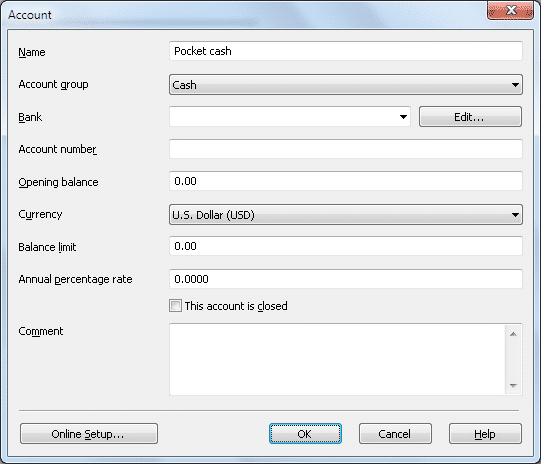
The Account dialog: Pocket cash, in the Cash account group

Your first transactions

Double-click the account in the list of accounts to open its register. Let’s start with some income — a paycheck. A paycheck is really a split transaction: your net pay is what’s left of your gross pay after taxes, retirement contributions, insurance and so on. To keep that detail, add a new transaction, click Split and enter each deduction as its own line. If you’d rather keep it simple, enter the net amount with a single category such as Wages.

Say your employer, Mr. Dobkins LLC, pays you 1,500 dollars. Click the New transaction button, choose Deposit, and enter the payor (Mr. Dobkins LLC), the category (Wages and Salary › Net Pay) and the amount (1,500).
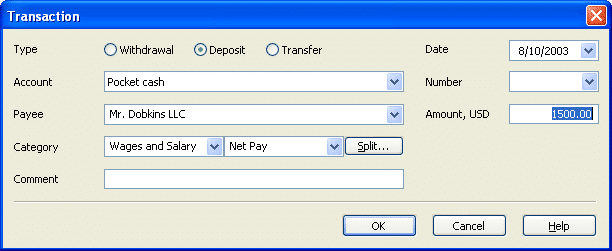
The Transaction dialog: a 1,500 deposit from Mr. Dobkins LLC, category Wages and Salary, Net Pay

Click OK and the transaction appears in the account’s register.
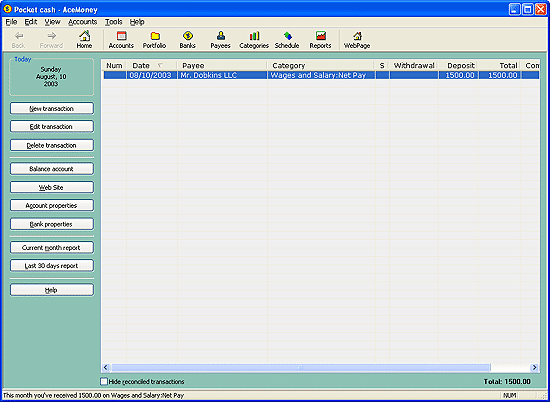
The Pocket cash register showing the paycheck

Your balance is now 1,500. But you already had about 1,000 in your pocket before the paycheck arrived. That’s easy to fix: click Account properties, enter 1,000 as the Opening balance, and click OK. The balance is now 2,500.

Now some shopping: you spent 100 on groceries at Walmart. Add a Withdrawal with Walmart as the payee, Food › Groceries as the category and 100 as the amount.
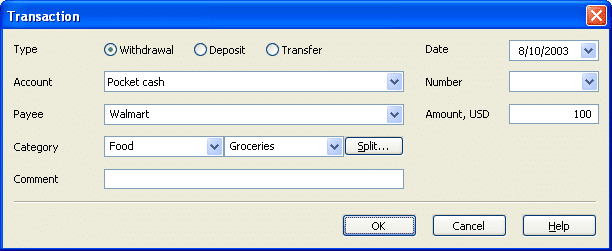
The Transaction dialog: a 100 withdrawal to Walmart, category Food, Groceries

The balance is now 2,400. The transaction has a category and a payee, so AceMoney Classic can report your spending by category, by payee, or both. That’s the whole idea: track your income and expenses this way, with a category and a payor or payee on every transaction.

Tips

Reconcile with your statement. Once a month, check your bank statement against AceMoney Classic: right-click each transaction on the statement and mark it reconciled.

Import instead of typing. If your bank lets you download statements in QIF format, save the file and choose File › Import in AceMoney Classic, then pick the account to import into.

Money you lend. The easy way is a category such as “Loan:Name” and a transaction report on it: the report’s total is what is still owed. Or create an account for the person who owes you: your loan is a transfer to that account, each repayment a transfer back, and the account’s balance shows what is owed at a glance. When the debt is paid off, mark the account closed in its properties.

Recurring transactions. Set up paychecks and utility bills in the Schedule screen. When a bill arrives, press Enter to accept it. The paycheck above, for example, can be scheduled as a deposit every two weeks.
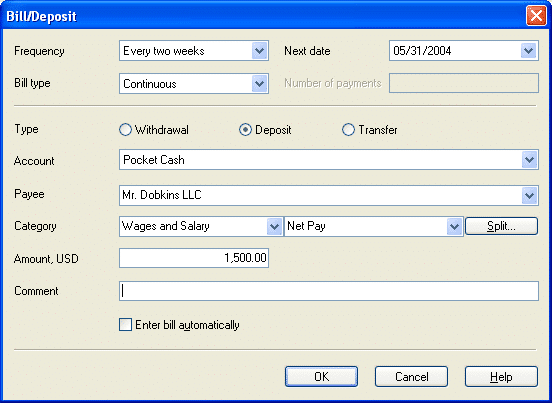
The Bill/Deposit dialog: the paycheck, every two weeks

What’s next?

Explore the application and find the way of managing your money that suits you. And back up your data at least twice a month: this kind of information is hard to rebuild without a backup.

Questions

General questions

Is AceMoney Classic compatible with Windows 10?

Yes, AceMoney Classic is perfectly compatible with Windows 10.

Can AceMoney Classic be used on a Mac?

Yes: AceMoney Classic for macOS is on the downloads page.

Another website offers a registered version of AceMoney Classic. Is it safe to download?

No, unless you want someone else to take over your computer: pirated copies are a common way to spread malware. Download AceMoney Classic only from our downloads page.

Is there a version for Android, iPhone or iPad?

AceMoney Receipts is available for iPhone, Android and the web, and pairs with AceMoney Classic. AceMoney Studio Mobile, the full ledger for phones, is coming soon.

Can AceMoney Classic print checks?

No, AceMoney Classic cannot print checks.

Does AceMoney Classic allow online payment?

No, AceMoney Classic does not make payments to banks or other financial institutions. The Schedule adds scheduled transactions to your account registers. Online, AceMoney Classic only downloads existing transactions from banks and investment price quotes from data sources.

Install, update and registration

I can’t find my license e-mail.

Your license was sent by e-mail right after your order. Check your spam folder first: spam filters often catch license e-mails. If it isn’t there, ask support (opens in a new tab) and we’ll resend it.

I can’t enter my license code.

Follow the instructions in your license e-mail exactly. Enter the name and the serial number exactly as the e-mail shows them: they must match, because the serial number is checked against the name. Don’t type the serial number — copy and paste it. Select all six lines of it in the e-mail, right-click and choose Copy; then, in AceMoney Classic, right-click the serial number field of the registration dialog and choose Paste. Do the same for the name, then click OK. You should see “Thank you for supporting us!”, which completes the registration.

When I start AceMoney Classic I don’t see my accounts anymore. What happened?

Open your data file with File › Open. To have it open automatically every time, tick “Load last file during startup” under Tools › Options. AceMoney Classic data files end in .amj (older versions used .mmw). If you don’t remember where the file is, search your computer for *.amj (or *.mmw).

How do I update AceMoney Classic to the latest version?

Back up your data first. Then close AceMoney Classic, exit AceMoney Reminder (right-click the green icon at the bottom right of the screen and choose Exit), and install the latest version from the downloads page over your current one. Newer versions open data files made by older ones.

How do I move AceMoney Classic and my data to another computer?

The secure AMJ file format only opens on another computer if you allowed it on the computer where the file was created. To allow it, click Tools › Options › Password, tick “Allow Multi-user access” and choose a password. This also keeps your financial information safe if the file ever ends up somewhere it shouldn’t. Then:
1. Run a backup and move your .amj file to the new computer.
2. Uninstall AceMoney Classic from the old computer.
3. Install the latest version on the new one.
4. Enter your serial number.
5. Open your data file with File › Open, and tick “Load last file during startup” under Tools › Options to open it automatically.
If you still use an older version with the .mmw format, you don’t need a password, and you won’t find the sharing option.

When I double-click my data file, Windows asks which application to open it with. Why?

Probably another program — Microsoft Office System 2003, for example — registered the .mmw extension for itself. Associate it with AceMoney Classic again: the next time Windows asks, choose “C:\Program Files (x86)\AceMoney\AceMoney” (or “C:\Program Files\AceMoney\AceMoney” on 32-bit Windows).

Can I change the dollar sign icon to something else?

Yes. AceMoney Classic comes with icons for different currencies. Right-click the AceMoney shortcut on your desktop or in the Start menu, click Properties, click Change Icon, pick an icon and click OK.

“Failed to open document” when I open my file

The secure AMJ format (since version 4.20.1) only opens a file elsewhere if you allowed it in Tools › Options › Password (“Allow Multi-user access”, with a password) on the computer where the file was created. So after reinstalling your operating system, or on another computer, the file won’t open unless you allowed it first. If you can no longer open it on the original computer, send the file to support (opens in a new tab) in a ticket: we reset its security settings and send it back to your e-mail address directly. Tickets are private.

Moving from other software

How do I import my data from Microsoft Money?

Export each account from Microsoft Money to its own QIF file. Create the same accounts in AceMoney Classic, then import each QIF file into its account with File › Import.

How do I import my data from Quicken?

Export each account from Quicken to its own QIF file. Create the same accounts in AceMoney Classic, then import each QIF file into its account with File › Import. To avoid duplicated transfers between accounts, see the question on duplicate transfers.

How do I import my data from other finance software?

Most finance programs can export to QIF. Export your data account by account into separate QIF files, create the same accounts in AceMoney Classic, and import each file into its account.

How do I import my data from Excel or OpenOffice?

Save the data as a CSV file with the columns AceMoney Classic expects (see the CSV question) and import it, or convert it to QIF with a spreadsheet-to-QIF converter and import that.

Importing QIF, OFX, OFC, QFX and CSV files

When I import a QIF file from my bank, every date is set to today. What is wrong?

Banks write dates in different formats: most North American banks use MM/DD/YY, and many European banks DD-MM-YY. AceMoney Classic can’t detect the format by itself; it reads dates in the format set under Tools › International Settings. Choose the format your bank uses and import the file again.

Can AceMoney Classic open QIF or OFX files straight from my bank’s website?

Yes. First run AceMoneyImporter.exe, in C:\Program Files (x86)\AceMoney (C:\Program Files\AceMoney on 32-bit Windows). It shows nothing — it quietly registers itself for .qif and .ofx files. If other finance software already owns those file types, AceMoneyImporter leaves them alone and you change the association yourself:
Windows 7, 8 or Vista: open Control Panel › Default Programs › “Associate a file type or protocol with a program”, double-click “.qif” and choose AceMoneyImporter (if it isn’t listed, click Browse and find C:\Program Files (x86)\AceMoney\AceMoneyImporter). Do the same for .ofx, .ofc and .qfx.
Windows XP: in Windows Explorer open Tools › Folder Options, find the QIF extension and make sure it “Opens with AceMoneyImporter”; if not, click Change, then Browse, and choose C:\Program Files\AceMoney\AceMoneyImporter.exe. Do the same for OFX, OFC and QFX.
Then, on your bank’s website, click the file and choose Open instead of Download: AceMoney Classic starts, if it isn’t running, and shows the import dialog.

My bank only offers CSV files. Can AceMoney Classic import them?

Yes. AceMoney Classic imports CSV files made by AceMoney Classic, Microsoft Excel, OpenOffice Calc or any other spreadsheet. Banks order their CSV columns differently, so open the file in a spreadsheet first and arrange the columns in the order AceMoney Classic expects — usually by adding empty columns or reordering existing ones:
A (1) transaction or check number · B (2) date · C (3) payee · D (4) category · E (5) status · F (6) withdrawal · G (7) deposit · H (8) total · I (9) comment.
These are the columns of the account register, in the same order as on screen.

Can AceMoney Classic connect directly to my bank and download transactions?

Yes, from banks that offer OFX Direct Connect, with a single click. Open the account’s properties and press Online Setup to see whether your bank is listed.

How do I avoid duplicated transfers when importing several QIF files?

Each QIF file holds one account, so a transfer between two accounts is imported twice: once from each file. There is no automatic fix; remove the duplicates by hand, in this order:
1. Import the first account’s QIF into an account named exactly like the original, then delete all transfers to or from this account (sort by payee, shift-click to select the range, delete).
2. Import the second QIF, and delete all transfers to or from the second account except those involving the first.
3. Import the third, and delete all its transfers except those involving the first and second accounts.
4. Continue until every account is imported.

Can I download transactions from my bank directly in AceMoney Classic?

AceMoney Classic connects to banks with the industry-standard OFX protocol and can work with any bank that offers it. If your bank supports direct downloads with OFX but isn’t in the list, contact support (opens in a new tab) with the address of the bank’s OFX server. Note that a bank’s OFX server is not its website: being able to download transactions from your account page doesn’t mean the bank supports direct downloads from software.

My bank says it doesn’t support AceMoney. Why is it in the list?

If your bank supports Direct Connect — the OFX protocol for downloading transactions straight into software — AceMoney Classic works with it even if the bank says otherwise: it uses the same server and protocol as Microsoft Money and Quicken. Some banks only enable Direct Connect when you ask; ask them to activate it for Microsoft Money or Quicken, which they will recognise. Some banks charge a small fee for it. You can also download .qif or .ofx files from the bank’s website and import them.

Downloads fail with error code 2000 or 15500. What does it mean?

Usually that your bank hasn’t enabled Direct Connect for you, or that the user name or password in the Online Setup dialog is wrong. Most major banks need a phone call to enable Direct Connect: ask for Direct Connect for Quicken for Windows 2008, which uses the same protocol as AceMoney Classic — not Web Connect, which AceMoney Classic doesn’t support. Activation can take up to 24 hours.
If it still fails, check the online service provider in AceMoney Classic: the right type (bank, credit card or brokerage) and the right server — some banks have a server per state. If downloads still fail, contact support (opens in a new tab) with the AceMoney Classic log file: open the account, click “Download transactions”, tick “Enable logging” and click OK; wait for the failure; then type %TEMP% in the Windows Explorer address bar and attach the AceMoney-[year]-[month].log file you find there.

Account balances

Why is an account’s balance on the main page different from the balance on the account page?

If the account holds investments, the main page adds their value to the account’s balance, while the account page shows only the cash. To show only cash on the main page, untick “Add value of investments to account balance” in Tools › Options. Currencies can also explain it: if the account’s currency differs from the default currency (Tools › International Settings), the account page shows the account’s currency, while group and total balances on the main page use the default currency.

Why are the values in the Total column out of order?

You are probably sorting by something other than the date. Running totals only make sense in date order: they belong to their transactions, so sorting by number or category shuffles them, though every value is still right. Click the Date column’s header to sort by date again.

Paychecks, loans, credit cards and mortgages

How do I enter a paycheck?

As a deposit. To keep the detail of taxes and deductions, click Split and enter each part as its own line; or enter the net amount with one category, such as Wages. Getting started walks through a paycheck step by step, and the Schedule can enter it for you every payday.

I lent money to a friend. How do I track the repayments?

Two ways. An account: create an account called “Friend” and record a transfer from your account to it for the loan; record each repayment as a transfer back. The Friend account’s balance shows what is still owed. If the loan carries interest, set it up as a loan account instead, and AceMoney Classic works out the interest and principal of each payment. A category: create a category “Loan:Friend”, record the loan as a withdrawal with it, and each repayment as a deposit with the same category; a category report shows what is still owed.

How do I track credit cards?

Give each card its own account and record its charges as withdrawals; by the end of the cycle the account has a negative balance. When the statement arrives, reconcile the transactions on it (mark them reconciled in AceMoney Classic), and record your payment as a transfer from checking to the card’s account. If you pay the statement in full, the card’s balance returns to zero — apart from any new charges not on the statement yet.

How do I track mortgage payments?

A mortgage payment usually has three parts: principal, interest and escrow. The simple way: schedule a recurring withdrawal split into three categories; category reports then show what you paid for each in the year, but not the balances of the mortgage and escrow. To track those balances: create a mortgage account with a negative starting balance (what you owe) and an escrow account (zero for a new home, otherwise its current balance). Record each payment as a split withdrawal: the interest with a category, the principal as a transfer to the mortgage account, and the escrow as a transfer to the escrow account. Then record insurance, property taxes or PMI paid from escrow on the escrow account.

Budget

Where do I set my budget limits?

Per category: open a category’s properties on the Categories page. The “Budget by categories” and “Budget by subcategories” reports show the difference between planned and actual income or spending.

Every category has Income and Expense buttons. Can’t I record income in an expense category?

You can record both. The buttons only set the sign of the budget limit. Here is why categories aren’t split into income and expense: say you buy a laptop for 1,000 with a 100 mail-in rebate. You spent 1,000 on Electronics, and that’s what the report should show. When the rebate check arrives, you deposit it with the Electronics category, and the report shows 900. That is income on an expense category — and the right answer. Categories should be free! :-)

Entering transactions

What is the “S” column in the transactions screen?

It shows the transaction’s state. Balancing an account (reconciling it) follows each transaction through three states: uncleared, cleared and reconciled. A transaction is uncleared when you’ve entered it but the bank hasn’t confirmed it; cleared once the bank shows it on its website or statement; and reconciled once you’ve matched it against the statement. The reconciled balance should equal the last statement’s balance.

What’s the difference between Uncleared, Cleared and Reconciled?

Uncleared means you entered the transaction but have no confirmation of it yet. Cleared means you know it happened — your bank shows it on its website, for example. Reconciled is the last state: usually, at the end of the month, you move cleared transactions to reconciled against the bank statement. The “Balance account” dialog makes that last step easy.

Investments

How do I use the portfolio to track investments?

1. Create an account for your brokerage account, and transfer cash into it from checking: you’ll use that cash to buy investments.
2. Find a data source with quotes for your investment. AceMoney Classic covers many markets; Google Finance, Bloomberg and Yahoo cover most investments.
3. On the Portfolio page, click Add investment and enter the symbol and data source you found (if you found none, enter a meaningful abbreviation). Use Update in the investment dialog to set the price by hand, or Download to fetch it.
4. In the investment account, click Investment Transaction. Use “Buy shares” to record a purchase; it uses the account’s cash (a negative cash balance means there wasn’t enough). The built-in help describes the other transaction types.
5. The account page shows only cash: buying investments lowers it and selling raises it. The account list on the main page adds the investments’ value, unless you untick “Add value of investments to account balance” in Tools › Options.

AceMoney Classic doesn’t know my stock or fund. How can it download its price?

Prices come from data sources, which you choose in the investment’s properties. If one doesn’t know your investment, try another. Most quotes are available from Yahoo Finance, which uses its own symbols: look your investment up there. Stocks are downloaded from US exchanges by default; for other exchanges, add the exchange’s suffix to the symbol.

How do I track employee stock options?

AceMoney Classic can’t record options or vesting directly, but it can track their market value. Create an account called Employee Stock Options. On the Portfolio page, add the stock as an investment if it isn’t there yet, and download its price. Record a “Buy shares” transaction for all your options at the grant price. With “Add value of investments to account balance” ticked in Tools › Options, the account’s balance shows your options’ current value.

How do I add a stock with an existing cost basis?

1. Work out the share price as the cost basis divided by the number of shares.
2. Record a “Buy shares” transaction for the shares at that price.
3. Record a deposit on the investment account for the same total as the “Buy shares” transaction.

Using your data on several computers

Can I use the same data file on several computers?

Yes. First allow it in Tools › Options › Password: tick “Permit access by multiple users” and set a password. Everything — accounts, transactions, categories, payees, favourite reports — is in one .amj file. Put it on a network share and open it with File › Open on each computer. Without a network share, a synced folder such as Dropbox works: save the file there on one computer and open it on another after it syncs.

Can’t find your answer? Ask support (opens in a new tab).